
Microsoft Sentinel
The Microsoft Sentinel integration pushes Nebulock security findings directly into Microsoft Sentinel. We use Microsoft's latest Logs Ingestion API (via Data Collection Rules).
In your Azure portal, navigate to Entra ID (Azure AD) -> App Registrations -> New Registration. Name it whatever you like, in this example it is named nebulock-sentinel-ingestion.
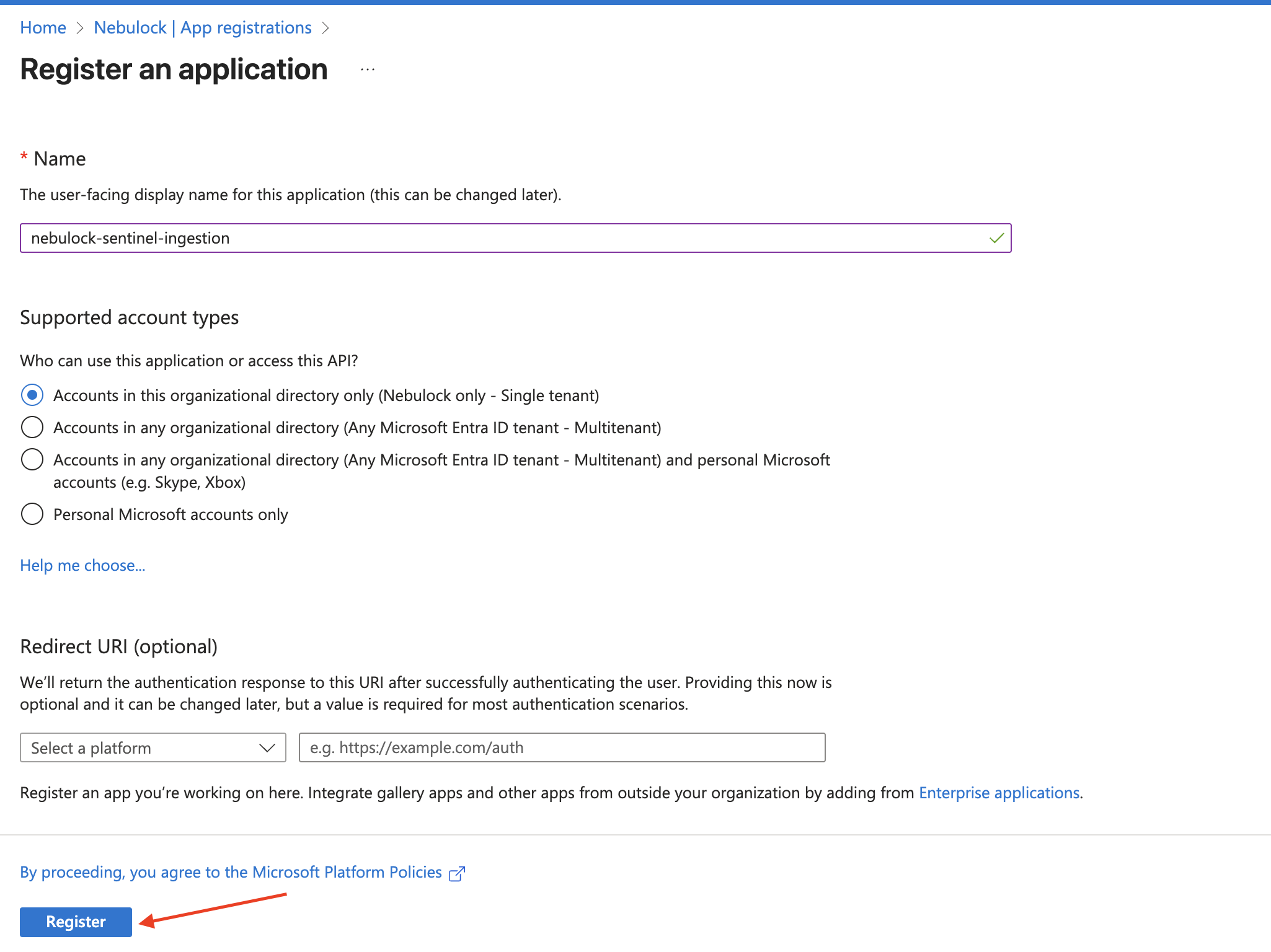
Note the Application (client) ID and Directory (tenant) ID as we will need these later.
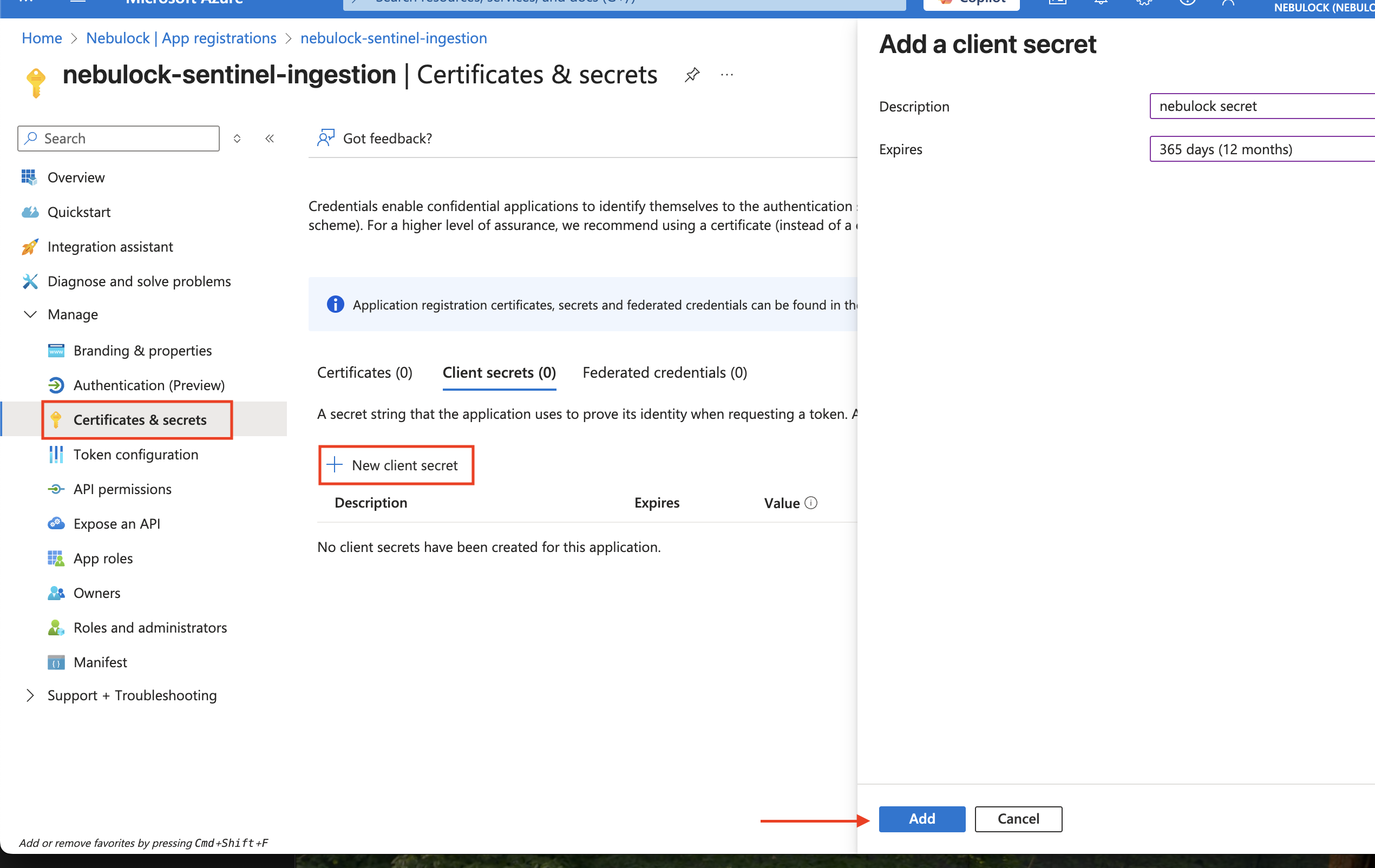
Go to "Certificates & secrets" and create a new client secret, once you click add note the Secret Value for later.
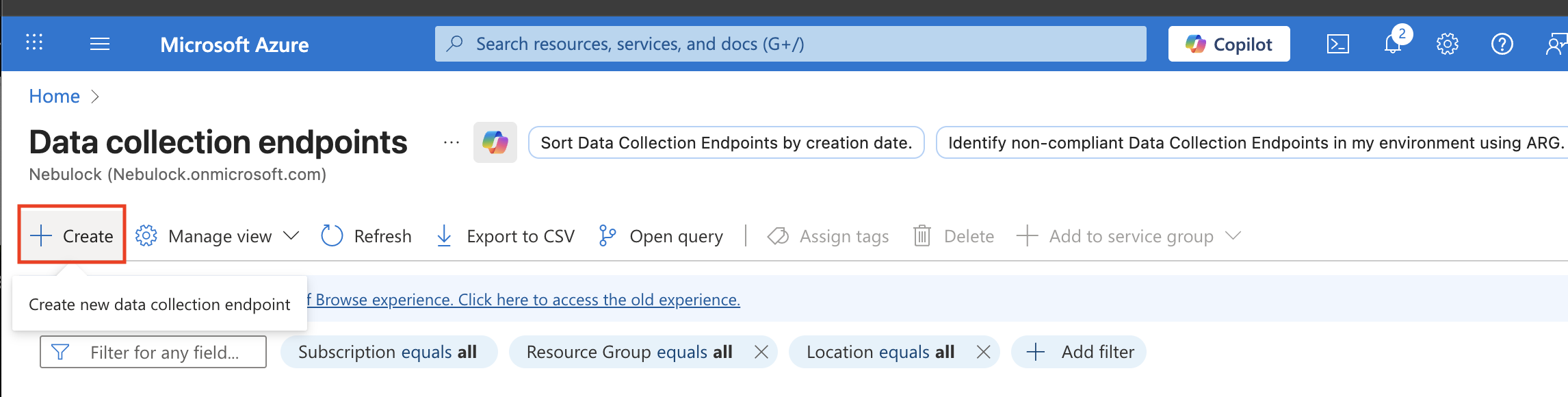
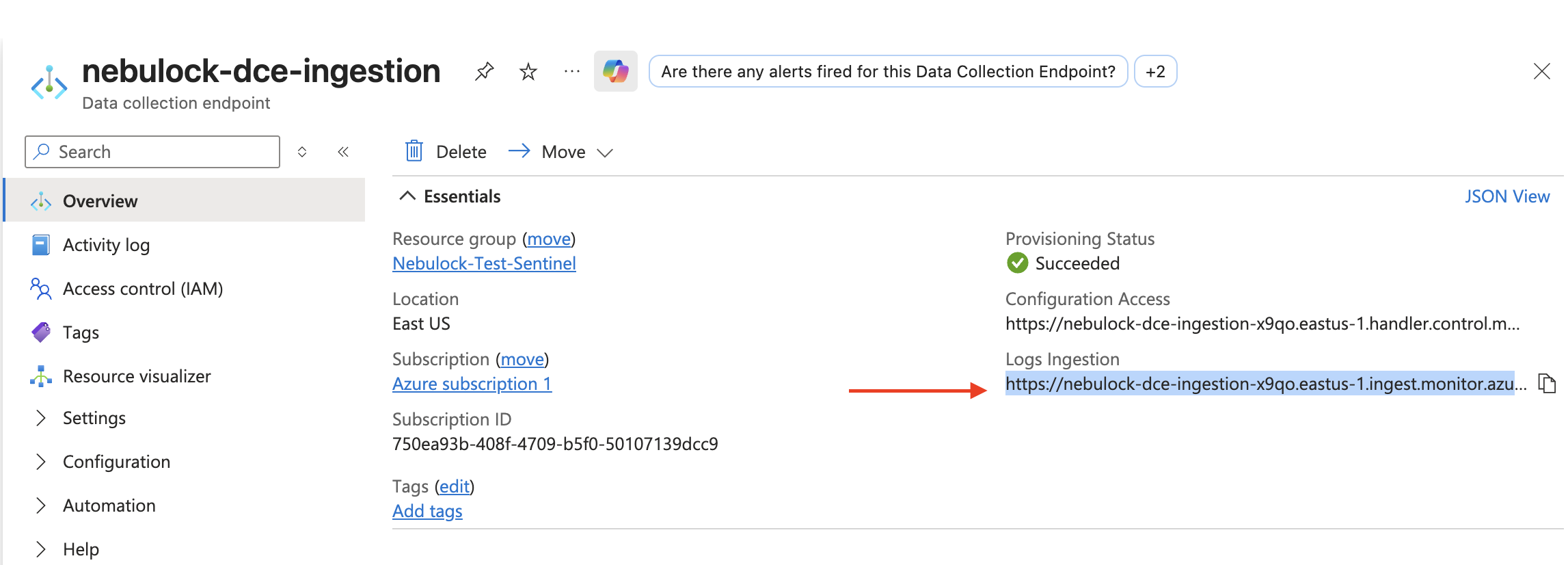
Create a Data Collection Endpoint (DCE), which will be used by our log analytics data collector.
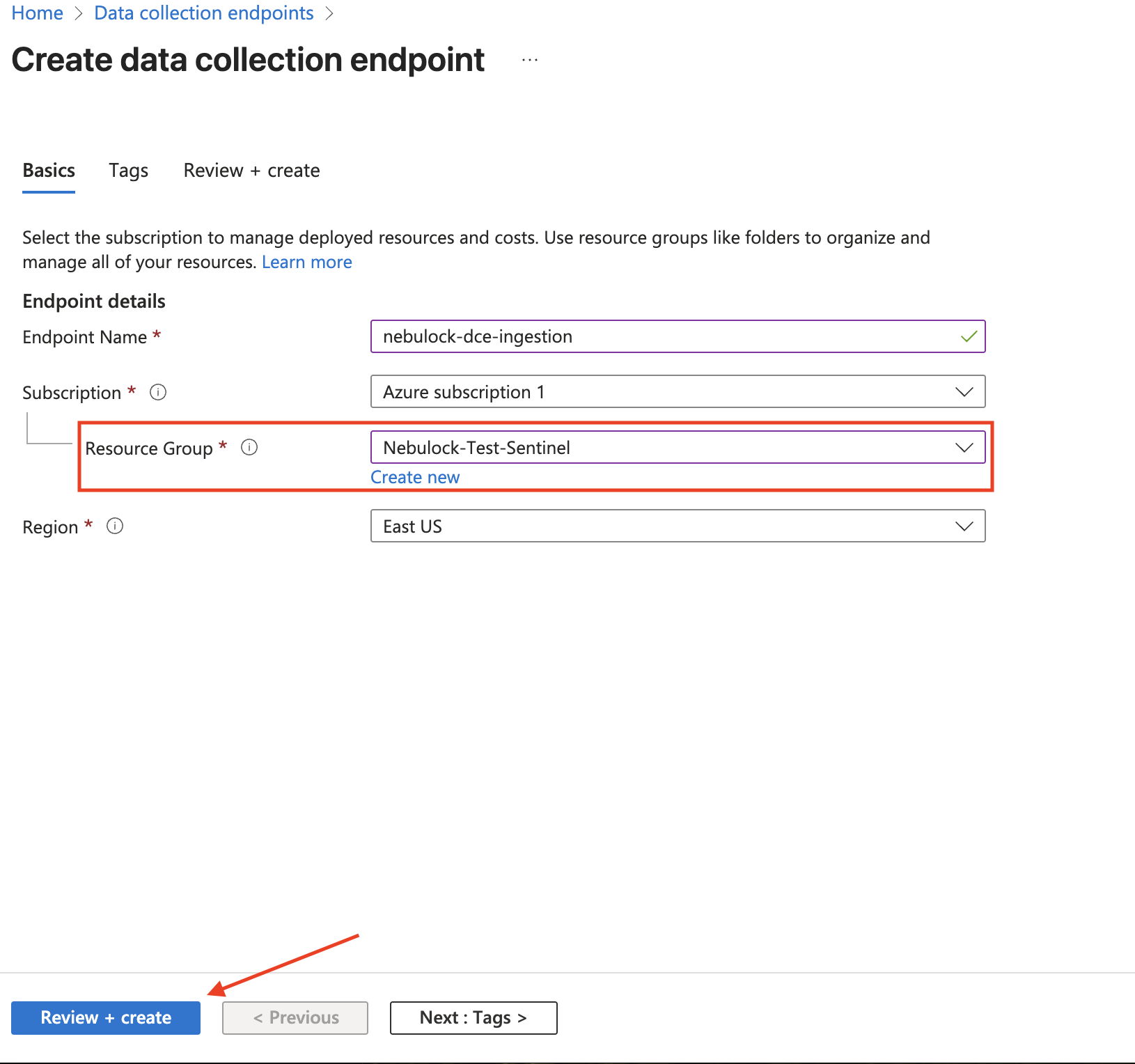
Create the DCE in the same resource group as the Microsoft Sentinel Log Analytics resource.
On the Overview page of the DCE just created, take note of the "Logs Ingestion" URL for later use.
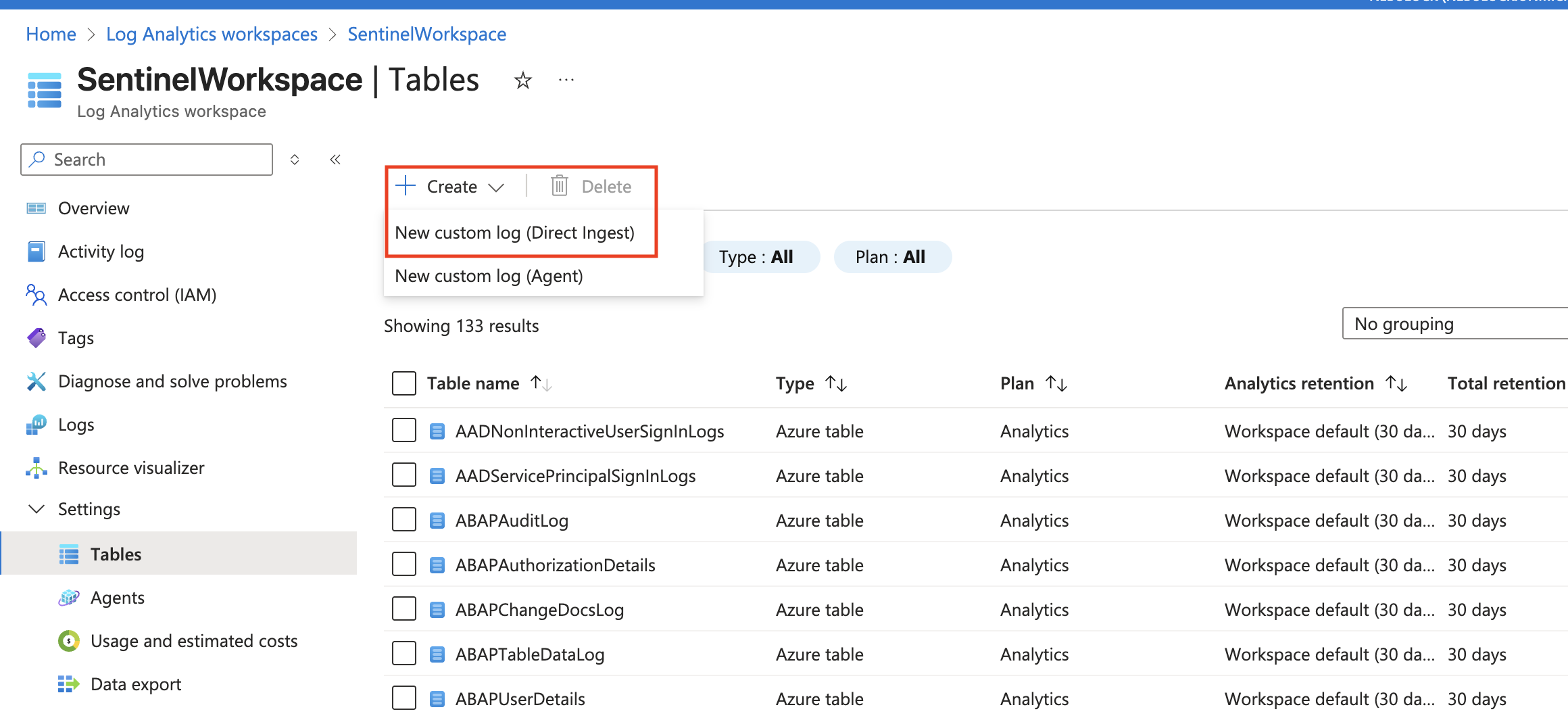
Navigate to Log Analytics Workspace -> Tables -> Create -> New custom log (DCR-based) (direct ingest).
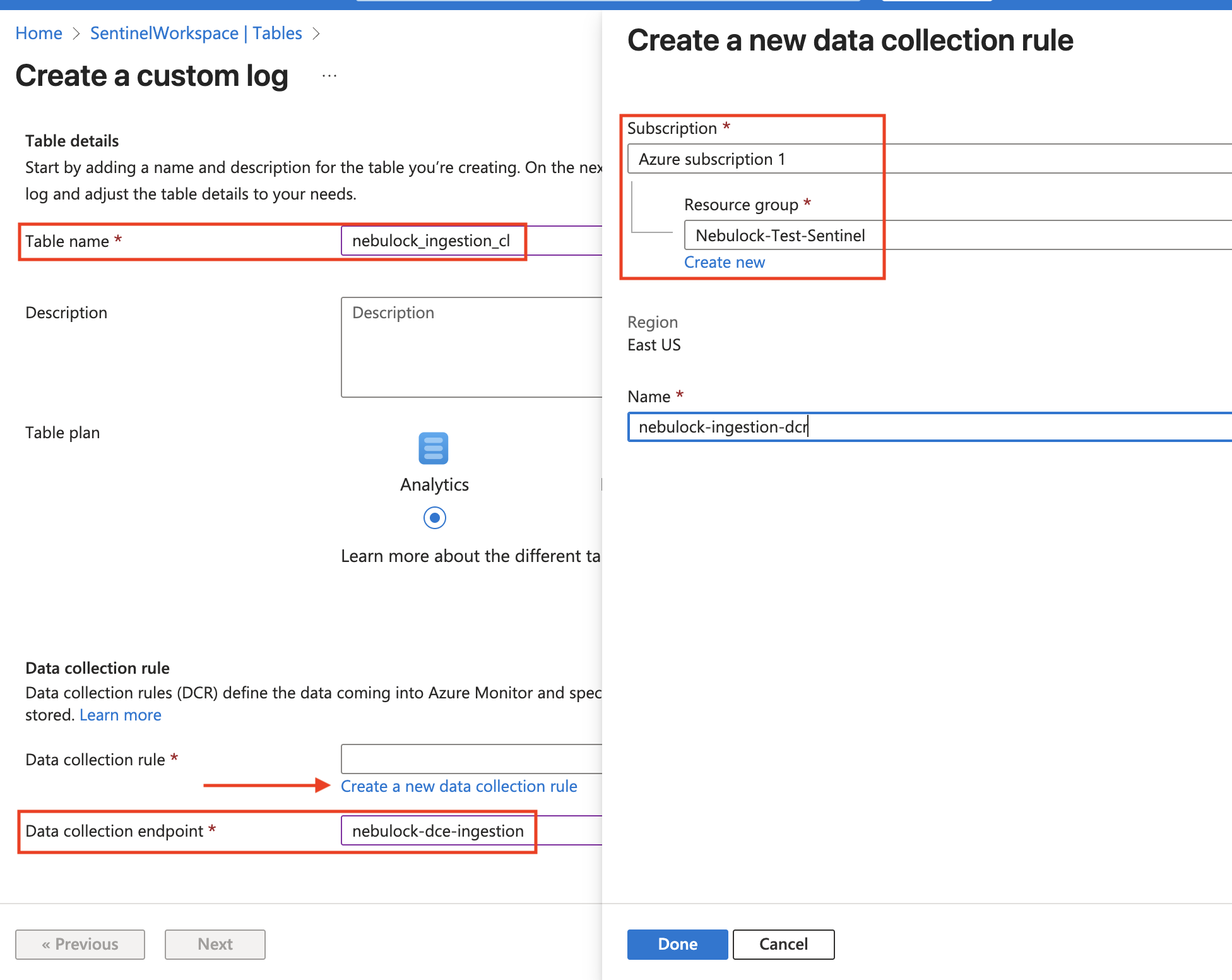
Name the table whatever you like, In this example it is named nebulock_ingestion_cl. Then create a new Data Collection Rule (DCR) and when prompted, in this example it is named nebulock-ingestion-dcr. Ensure you select the same Resource Group as before, and be sure to select the DCE we made in the previous step.
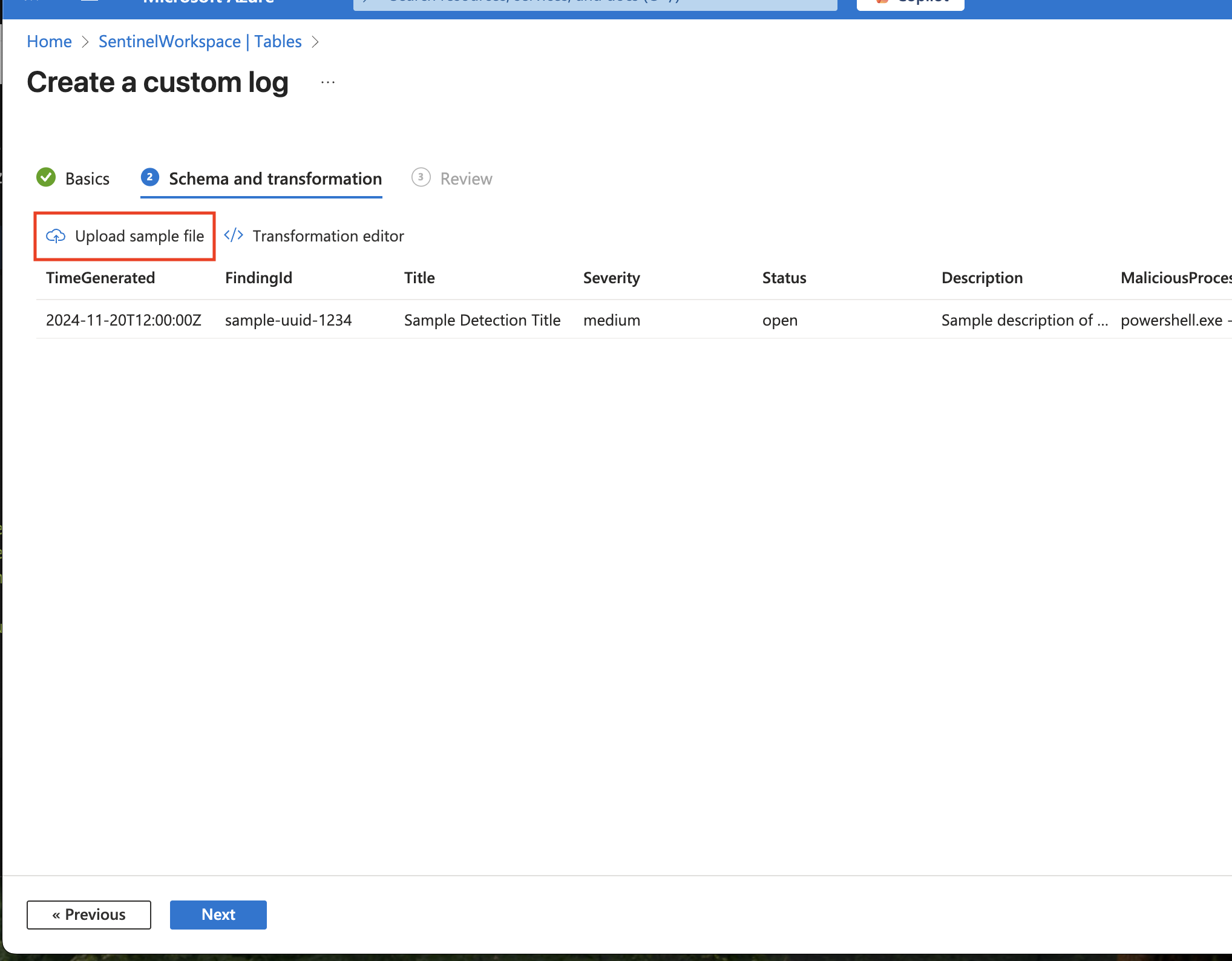
IMPORTANT: In the "Schema and transformation" step, upload the nebulock_sample.json file provided below. Azure will automatically learn the schema.
[
    {
        "TimeGenerated": "2024-11-20T12:00:00Z",
        "FindingId": "sample-uuid-1234",
        "Title": "Sample Detection Title",
        "Severity": "medium",
        "Status": "open",
        "Description": "Sample description of the security event.",
        "MaliciousProcess": "powershell.exe -enc XZY...",
        "Likelihood": "High likelihood based on behavioral analysis.",
        "RemediationSteps": "Isolate host\nReset credentials",
        "MitreTechniques": "T1059 (Command and Scripting Interpreter)",
        "NebulockUrl": "https://portal.nebulock.io/findings/123",
        "RawContext": "{\"signals\": []}"
    }
]
Review the settings, note the table name for later, and click "Create".
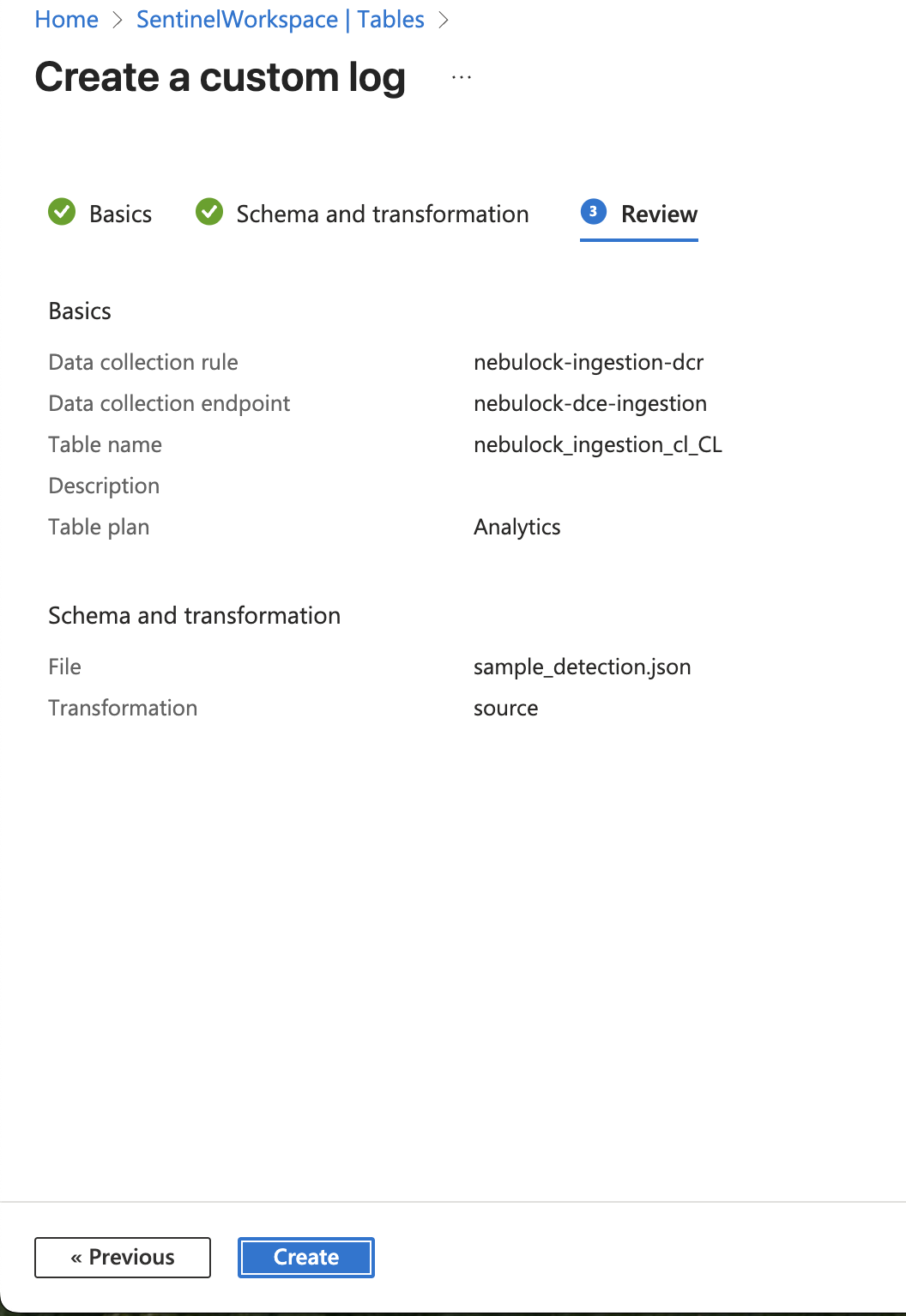
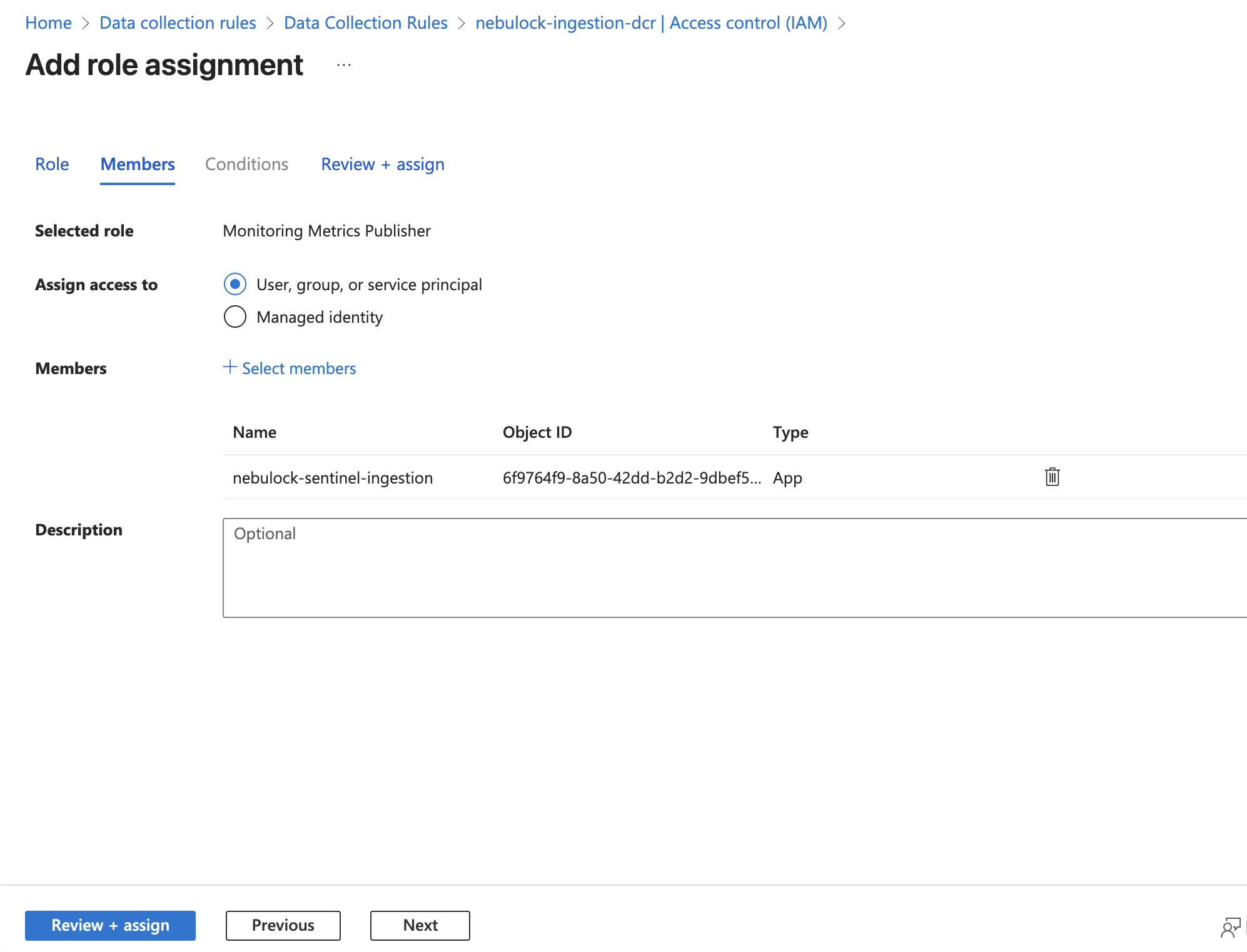
Go to the Data Collection Rule you just created -> "IAM (Access control)".
- Note down the immutable id for the next step.
- Add Role Assignment -> Role: Monitoring Metrics Publisher.
- Assign access to: The app you created in Step 1 (e.g. nebulock-sentinel-ingestion).
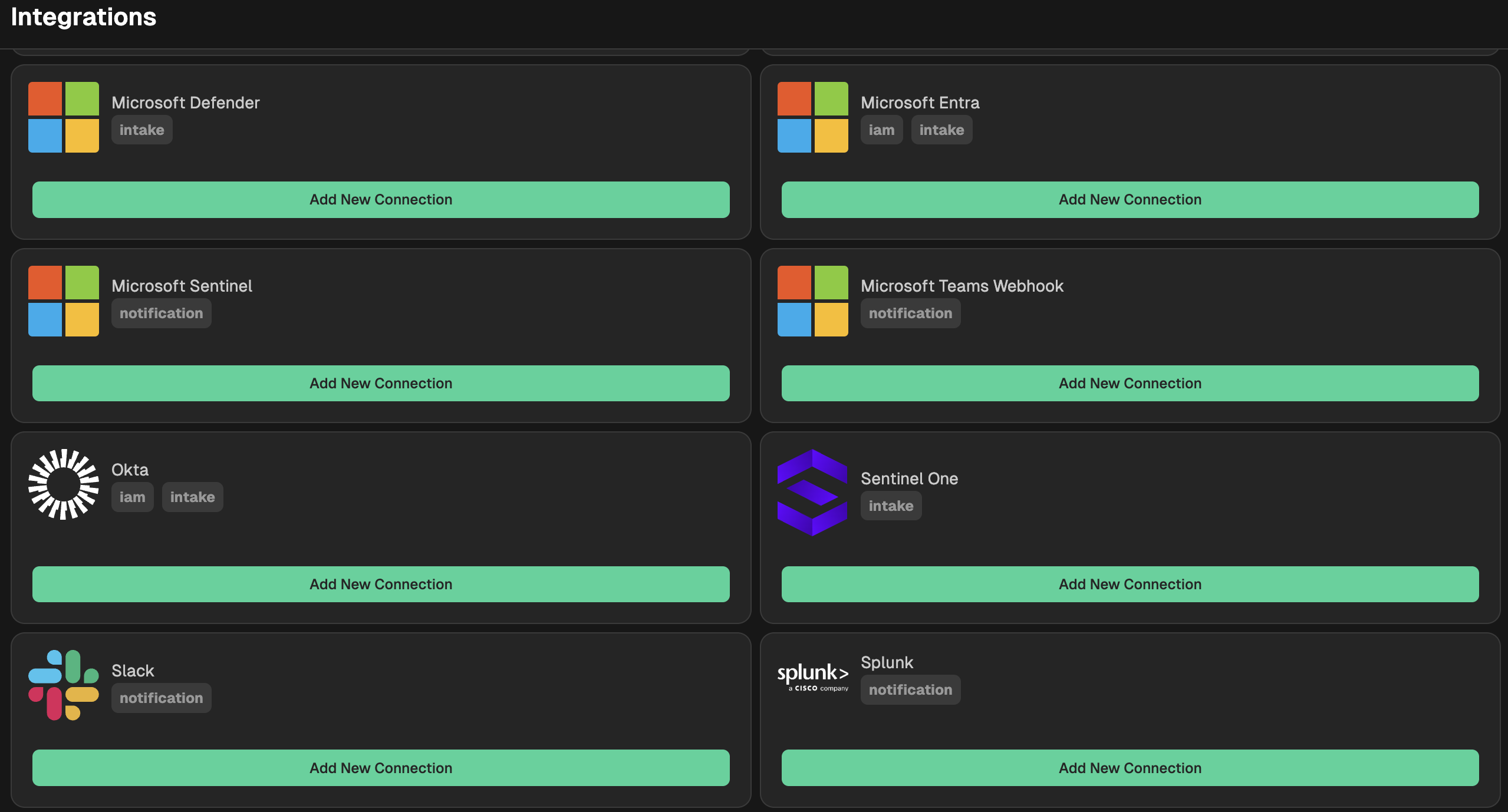
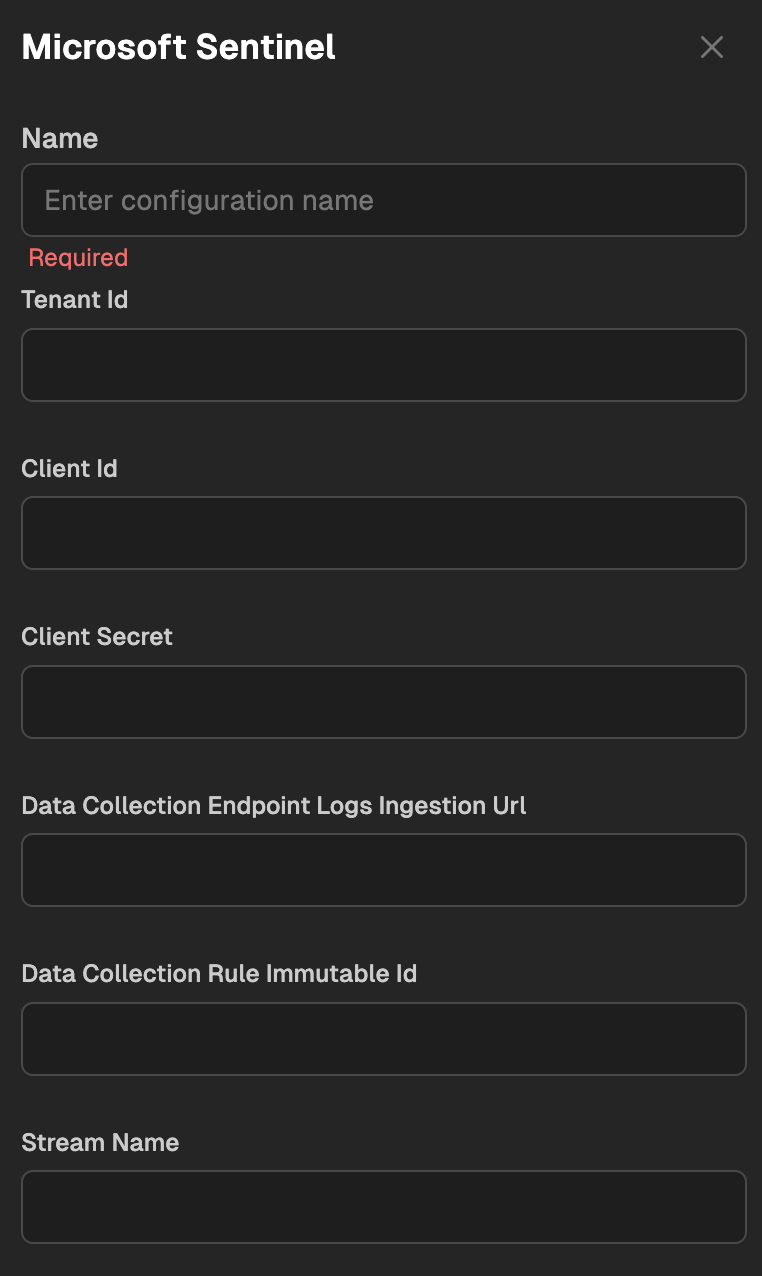
Go to your Nebulock platform and navigate to Integrations > Available Integrations, select "Microsoft Sentinel" and name the integration and fill out the details in the provided fields. In the "Stream Name" field, be sure to put the DCR Table Name from step above.
Updated 6 months ago