
Write Your First Detection Rule
Detection rules allow users to create signals for events of interest that are derived from threat intelligence or the output of hunts.
Rule writing can begin in three different parts of the platform.
- Vibe Hunting: create a rule from the output of a vibe hunt session
- Threat Reports: create a rule based on a piece of threat intelligence
- Detection Rules: create a rule starting with a prompt to the rules agent
When creating a Detection Rule from a Vibe Hunt, the agent will use context from the hunt to build the rule. Once you have saved it, you can view the generated rule and make modifications/edits.
When creating a Detection Rule from Threat Reports, the agent will use the reporting along with any context you provide to create a rule. You can then make modifications/edits to the rule.
When creating a Detection Rule from scratch, choose your data source and provide a clear directive to the rules agent. You can link a reference URL, and provide any supporting information in the prompt box.
Once you are in the Detection Rule Edits page, there are three ways to make edits.
- Modify the YAML directly using the text editor in the browser. Be sure to follow all YAML and Sigma specifications - any changes that are invalid will be highlighted by the editor and you will be unable to save your changes until the errors are corrected.
- Modify the rule using the chat agent. Provide clear, direct prompts to the agent and specify what needs to be changed in the rule. Once the agent has processed your directive, the new rule content will be populated alongside the original rule. If there are multiple changes, you have the option to accept or reject each individual change or accept all changes at once.
- Use the Suggest Rule Changes button to have the rules agent provide options to improve the rule. NOTE: To use this feature, you must first run a Retrohunt. The rules agent uses the results of the retrohunt to make suggestions.
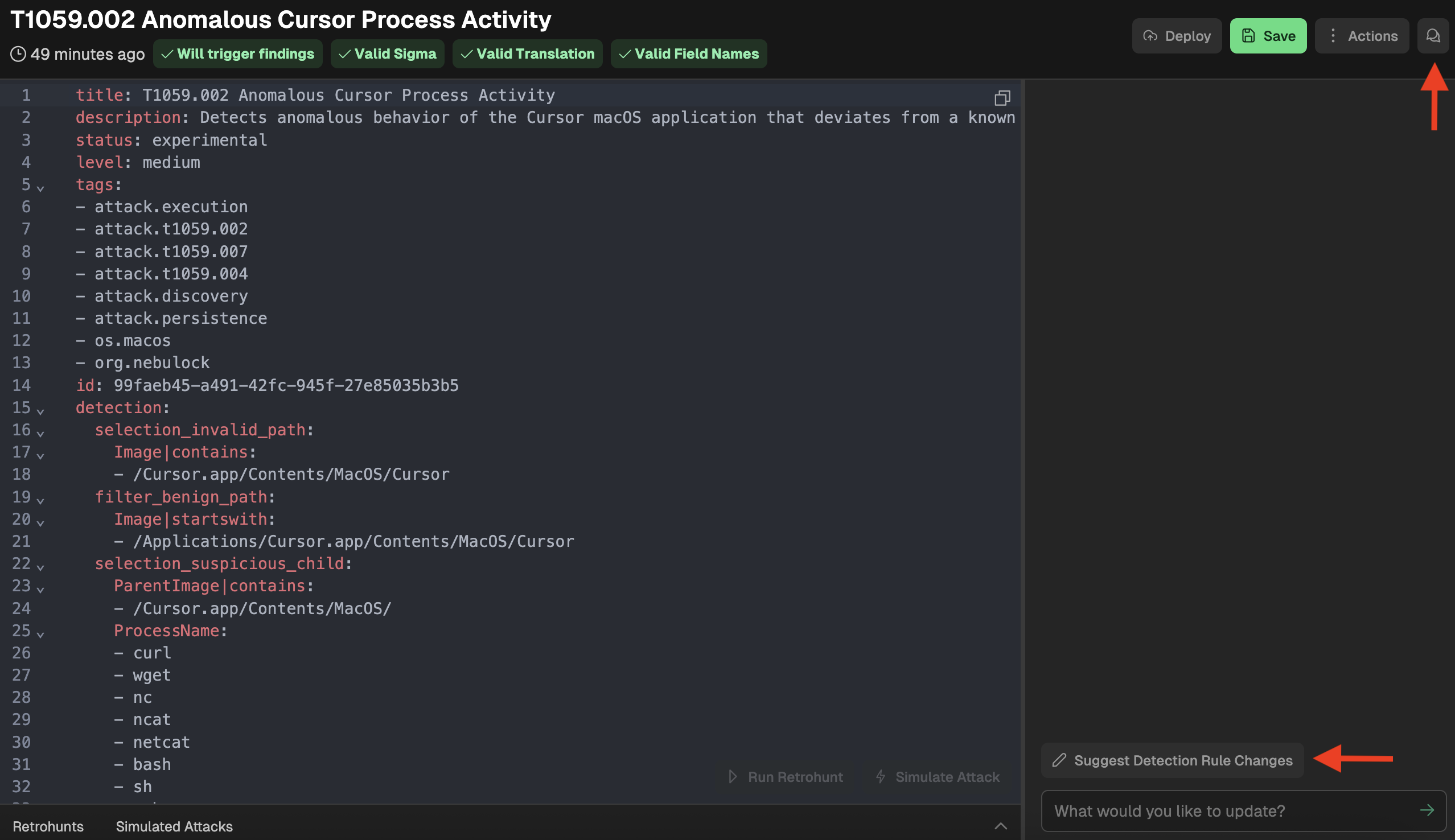
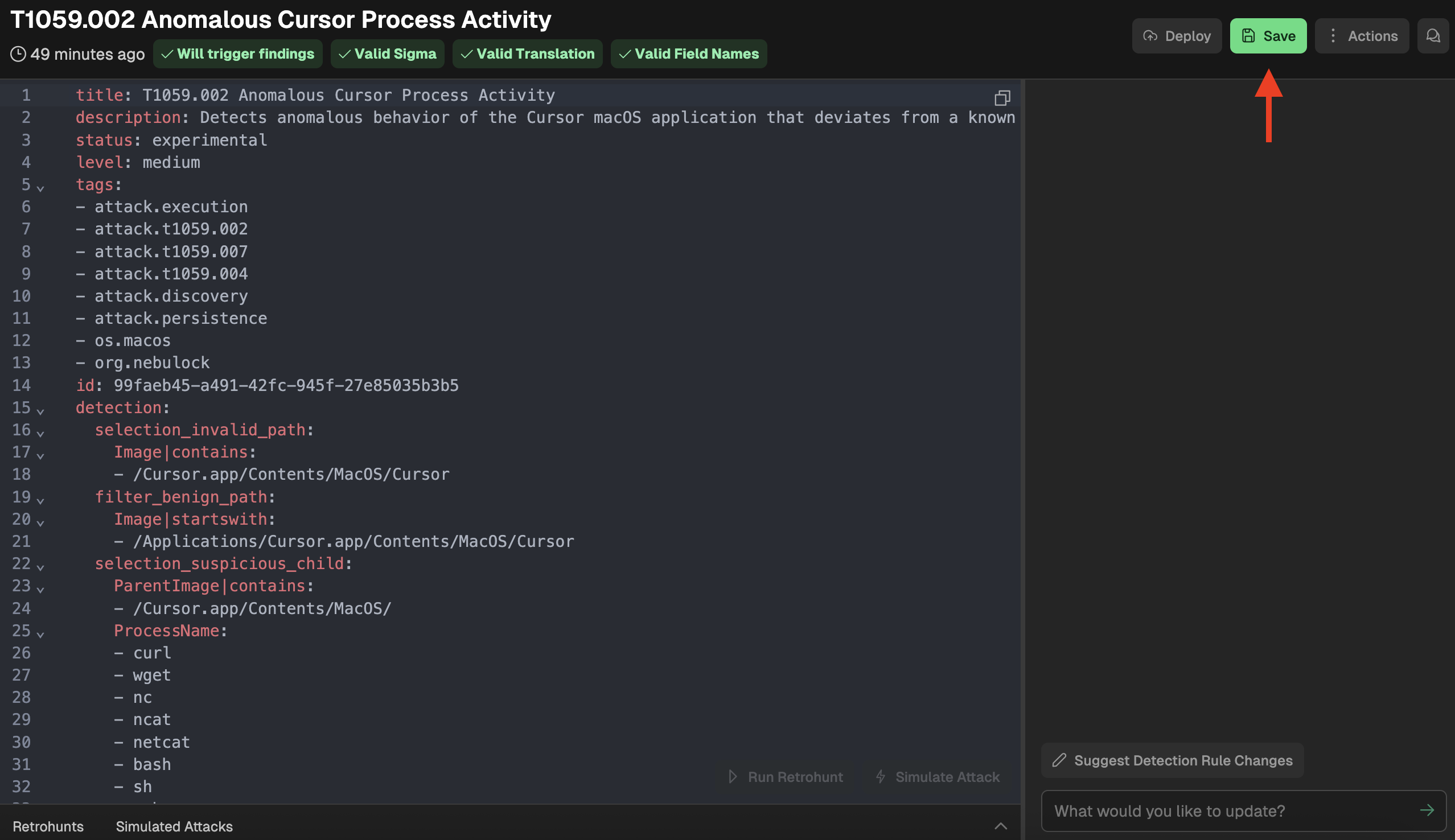
When your rule is complete, be sure to save it using the Save button. If there is a syntax error or unsupported field name, you will get a “Failed to Save Rule” error and the line with the errors will be highlighted. Be sure to save the rule once you have corrected any errors.
Updated 25 days ago