
AWS CloudTrail
You can integrate with AWS CloudTrail as a telemetry source with an S3 bucket and SNS. We use a CloudFormation template to provision the necessary resources and grant our worker role read-only access to ingest logs. This ensures your data remains in your control while allowing us to provide security insights.
There are two ways to integrate:
- Existing Bucket & SNS - for users who already have CloudTrail configured with S3 and SNS.
- Creating a New Trail & Bucket - for users who need to set up a new CloudTrail configuration from scratch.
Prerequisites
- Administrator access to the AWS Console
Additional prerequisites with an existing S3 bucket:
- An existing CloudTrail configured that is sending data to S3
- An SNS topic that publishes events when logs are delivered to the bucket
- If you don't have an SNS topic set up, you can create one using the AWS-provided SNS topic template.
Note: There will be additional steps in the CloudFormation outputs for adding KMS policy and S3 event notifications
| Criteria | Existing Bucket | New Trail |
|---|---|---|
| Current Setup | CloudTrail + S3 + SNS already configured | No existing CloudTrail |
| Resources Created | SQS Queue, IAM Role | S3 Bucket, CloudTrail, SNS, SQS, KMS Key, IAM Role |
| Template File | cloud_formation_existing_bucket.yaml | cloud_formation.yaml |
Integrate an Existing Bucket
Use this option if you already have CloudTrail configured with an S3 bucket and SNS topic. This template creates only the resources needed to grant Nebulock read access to your existing infrastructure.
Copy the CloudFormation template below and save it as cloud_formation_existing_bucket.yaml on your computer.
AWSTemplateFormatVersion: '2010-09-09'
Description: Creates SQS queue, IAM role, and permissions for Nebulock to read CloudTrail logs from your existing S3 bucket and SNS topic

# --- Parameters ---
Parameters:
  S3BucketName:
    Type: String
    Description: Name of your existing S3 bucket where CloudTrail logs are stored.

  SNSTopicArn:
    Type: String
    Description: ARN of your existing SNS topic that receives S3 event notifications for CloudTrail logs.

  NebulockAccountId:
    Type: String
    Description: The AWS account ID of the Nebulock account.
    Default: "061039802247"

  ExternalId:
    Type: String
    Description: "Unique identifier used as an 'sts:ExternalId' to restrict unauthorized cross-account role assumption."

  KMSKeyArn:
    Type: String
    Description: "(Optional) ARN of the KMS key used to encrypt the S3 bucket and SNS/SQS. Leave blank if not KMS-encrypted."
    Default: ""

  UseKMSForSQS:
    Type: String
    Description: "Whether to encrypt the SQS queue with KMS. Set to false if SNS cannot send messages due to cross-account KMS permissions."
    Default: "true"
    AllowedValues:
      - "true"
      - "false"

# --- Conditions ---
Conditions:
  HasKMSKey: !Not [!Equals [!Ref KMSKeyArn, ""]]
  UseSQSEncryption: !And
    - !Condition HasKMSKey
    - !Equals [!Ref UseKMSForSQS, "true"]

# --- Resources ---
Resources:
  # 1. SQS Queue for Processing S3 Events (subscribes to existing SNS topic)
  CloudTrailLogSQSQueue:
    Type: AWS::SQS::Queue
    Properties:
      QueueName: 'nebulock-cloudtrail-sqs'
      VisibilityTimeout: 300
      MessageRetentionPeriod: 1209600  # 14 days
      ReceiveMessageWaitTimeSeconds: 20  # Enable long polling
      KmsMasterKeyId: !If [UseSQSEncryption, !Ref KMSKeyArn, !Ref AWS::NoValue]

  # 2. SQS Queue Policy (allow SNS to send messages)
  CloudTrailLogSQSQueuePolicy:
    Type: AWS::SQS::QueuePolicy
    Properties:
      Queues:
        - !Ref CloudTrailLogSQSQueue
      PolicyDocument:
        Version: '2012-10-17'
        Statement:
          - Sid: AllowSNSToSendMessages
            Effect: Allow
            Principal:
              Service: sns.amazonaws.com
            Action: 'sqs:SendMessage'
            Resource: !GetAtt CloudTrailLogSQSQueue.Arn
            Condition:
              ArnEquals:
                'aws:SourceArn': !Ref SNSTopicArn

  # 3. Subscribe SQS to existing SNS topic (fan-out pattern)
  CloudTrailLogSQSSubscription:
    Type: AWS::SNS::Subscription
    Properties:
      Protocol: sqs
      TopicArn: !Ref SNSTopicArn
      Endpoint: !GetAtt CloudTrailLogSQSQueue.Arn
      RawMessageDelivery: true

  # 4. IAM Role for Nebulock Read Access
  NebulockReadRole:
    Type: AWS::IAM::Role
    Properties:
      RoleName: !Sub "Nebulock-Read-Access-Role"
      AssumeRolePolicyDocument:
        Version: '2012-10-17'
        Statement:
          # Allow worker role to assume with ExternalId
          - Sid: AllowWorkerAssumeRole
            Effect: Allow
            Principal:
              AWS: !Sub 'arn:aws:iam::${NebulockAccountId}:role/eks-pod-identity-intake-worker-app-role'
            Action: "sts:AssumeRole"
            Condition:
              StringEquals:
                "sts:ExternalId": !Ref ExternalId
          # Allow worker role to tag session (no ExternalId condition)
          - Sid: AllowWorkerTagSession
            Effect: Allow
            Principal:
              AWS: !Sub 'arn:aws:iam::${NebulockAccountId}:role/eks-pod-identity-intake-worker-app-role'
            Action: "sts:TagSession"
          # Allow orchestrator role to assume with ExternalId
          - Sid: AllowOrchestratorAssumeRole
            Effect: Allow
            Principal:
              AWS: !Sub 'arn:aws:iam::${NebulockAccountId}:role/eks-pod-identity-intake-orchestrator-app-role'
            Action: "sts:AssumeRole"
            Condition:
              StringEquals:
                "sts:ExternalId": !Ref ExternalId
          # Allow orchestrator role to tag session (no ExternalId condition)
          - Sid: AllowOrchestratorTagSession
            Effect: Allow
            Principal:
              AWS: !Sub 'arn:aws:iam::${NebulockAccountId}:role/eks-pod-identity-intake-orchestrator-app-role'
            Action: "sts:TagSession"
      Policies:
        # S3 Read Access for Worker
        - PolicyName: S3ReadAccess
          PolicyDocument:
            Version: '2012-10-17'
            Statement:
              - Effect: Allow
                Action:
                  - 's3:GetObject'
                  - 's3:ListBucket'
                Resource:
                  - !Sub "arn:aws:s3:::${S3BucketName}"
                  - !Sub "arn:aws:s3:::${S3BucketName}/*"
        # SQS Read Access for Orchestrator
        - PolicyName: SQSReadAccess
          PolicyDocument:
            Version: '2012-10-17'
            Statement:
              - Effect: Allow
                Action:
                  - 'sqs:ReceiveMessage'
                  - 'sqs:DeleteMessage'
                  - 'sqs:GetQueueAttributes'
                  - 'sqs:GetQueueUrl'
                Resource:
                  - !GetAtt CloudTrailLogSQSQueue.Arn
        # KMS Decrypt Access for S3 (always added if KMSKeyArn provided, regardless of SQS encryption)
        - !If
          - HasKMSKey
          - PolicyName: KMSDecryptAccess
            PolicyDocument:
              Version: '2012-10-17'
              Statement:
                - Effect: Allow
                  Action:
                    - 'kms:Decrypt'
                    - 'kms:DescribeKey'
                  Resource: !Ref KMSKeyArn
          - !Ref AWS::NoValue

# --- Outputs ---
Outputs:
  CloudTrailSQSQueueUrl:
    Description: URL of the SQS queue for CloudTrail log notifications.
    Value: !Ref CloudTrailLogSQSQueue
  NebulockReadRoleArn:
    Description: ARN of the IAM Role that Nebulock will assume to read CloudTrail logs.
    Value: !GetAtt NebulockReadRole.Arn
  ExternalId:
    Description: Unique identifier used as an 'sts:ExternalId' to restrict unauthorized cross-account role assumption.
    Value: !Ref ExternalId
Log in to your AWS Management Console.
Navigate to the CloudFormation service.
Click Create stack > With new resources.
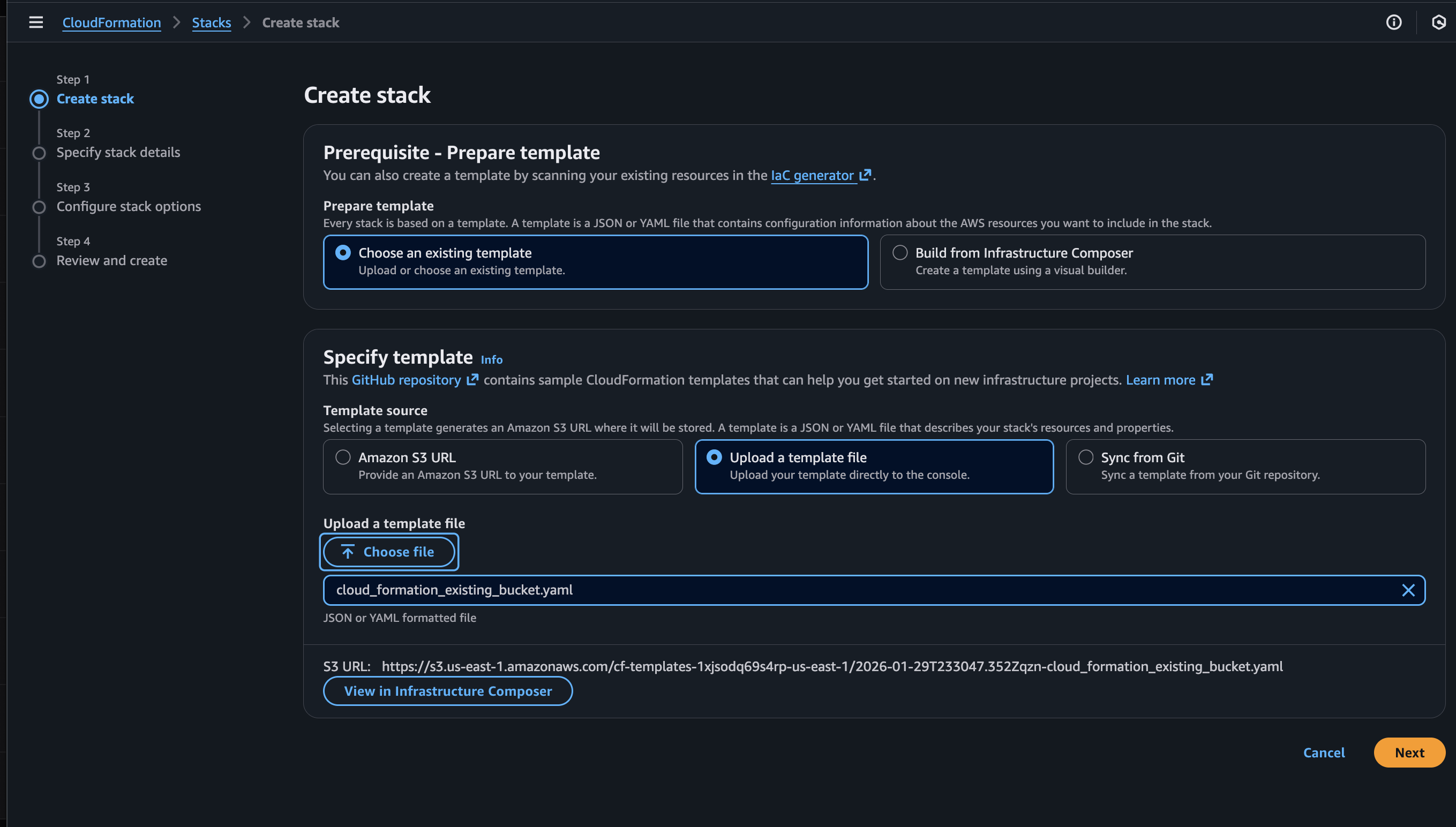
Select Upload a template file, choose the cloud_formation_existing_bucket.yaml file, and click Next.
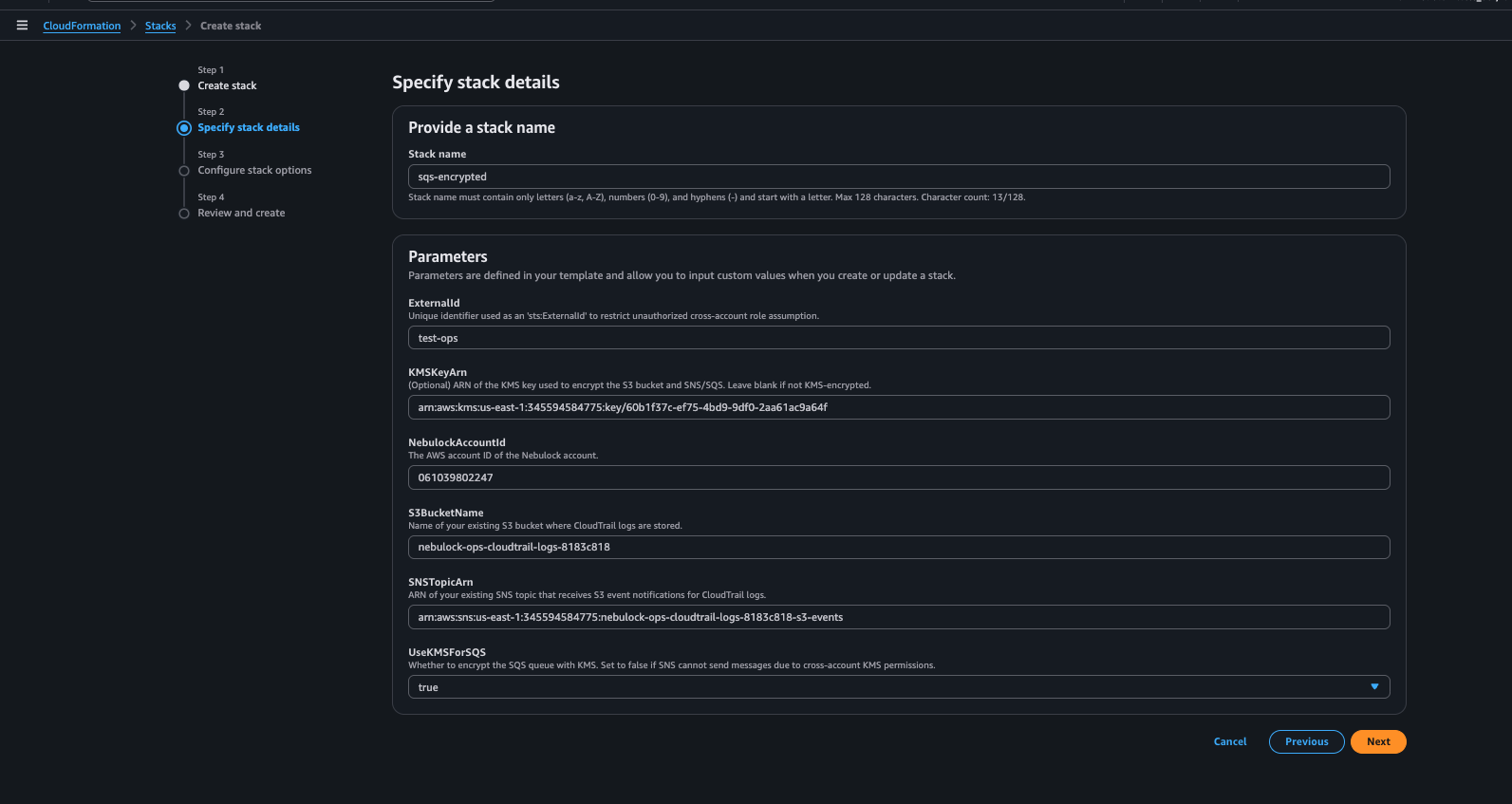
Configure the stack parameters:
-
Stack Name: Assign any name you prefer for this deployment (e.g.,
Nebulock-CloudTrail-Ingest). -
External ID: Provide a unique string of your choice; this acts as a shared secret to secure the cross-account connection.
-
S3 Bucket Name: Enter the name of the existing S3 bucket where your CloudTrail logs are stored.
-
SNS Topic ARN: Provide the ARN of the SNS topic that is currently receiving S3 event notifications for your log bucket.
-
KMS Key ARN (Crucial): * If your logs are encrypted, retrieve the ARN from your CloudTrail console under Trail > General details > KMS key ID.
-
Leave this blank if your bucket uses default SSE-S3 encryption.
-
Nebulock Account ID: Leave this as the default value provided in the template.
-
KMS for SQS: Only provide the KMS ARN if your SNS topic is already using that key. This ensures SNS has the necessary permissions to deliver encrypted messages into your new SQS queue.
In Configure stack options, no changes are needed. Click Next and then Create.
Monitor the Events tab to ensure the stack is created correctly.
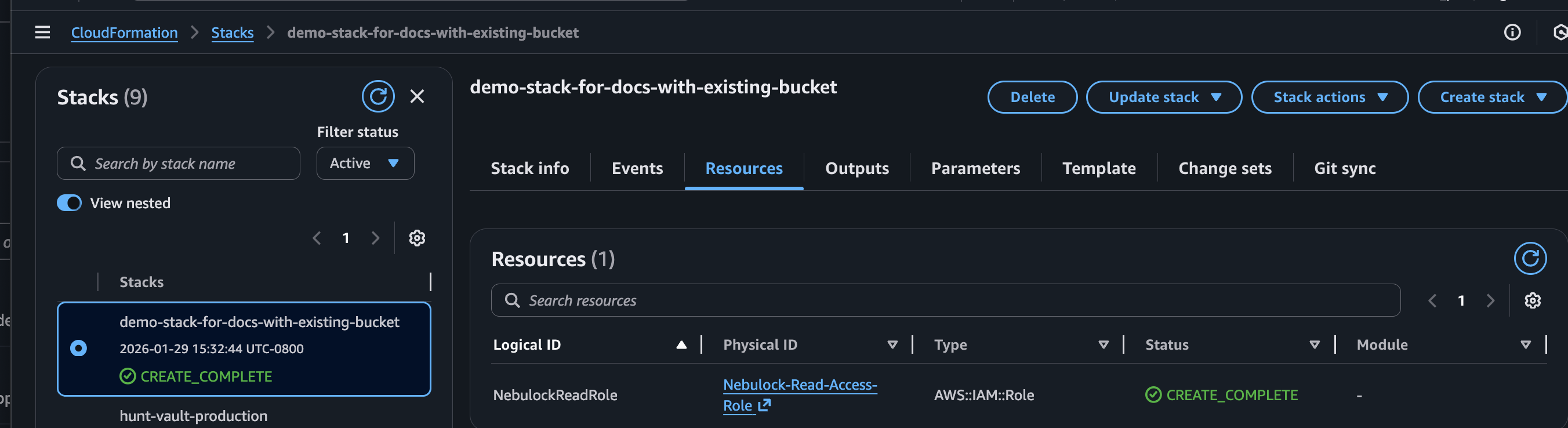
Once the stack shows CREATE_COMPLETE, navigate to the Outputs tab to find the values needed for the Nebulock integration.
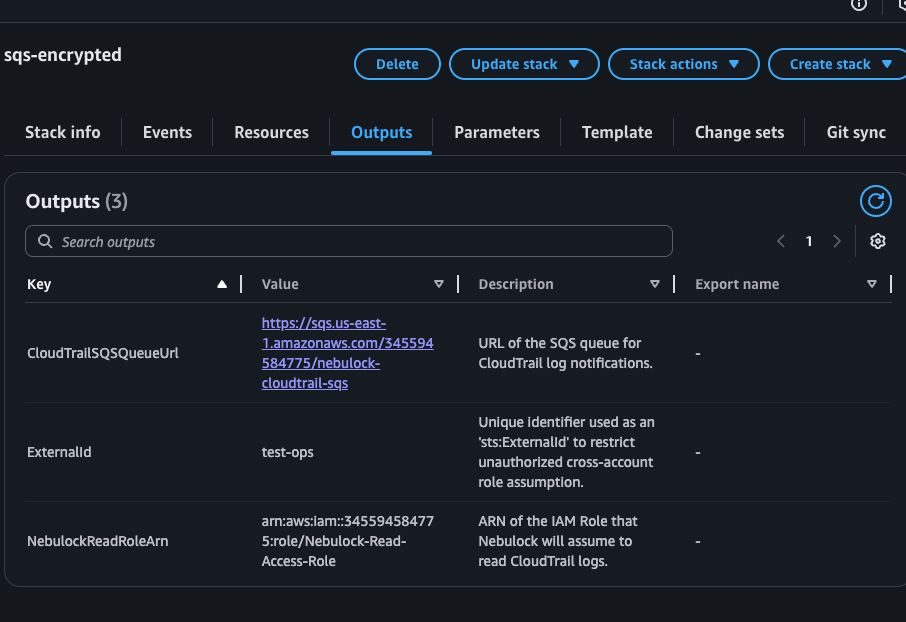
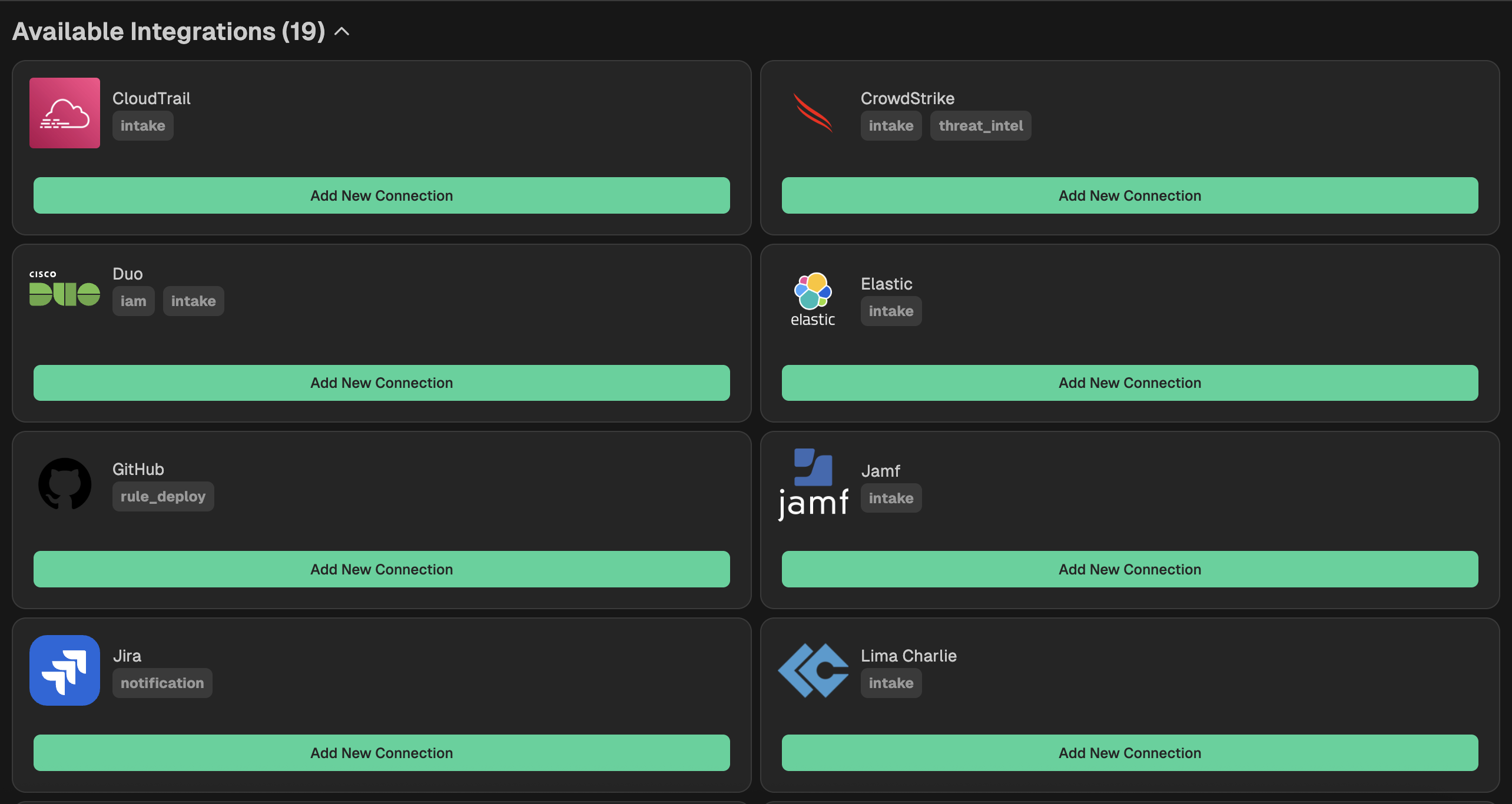
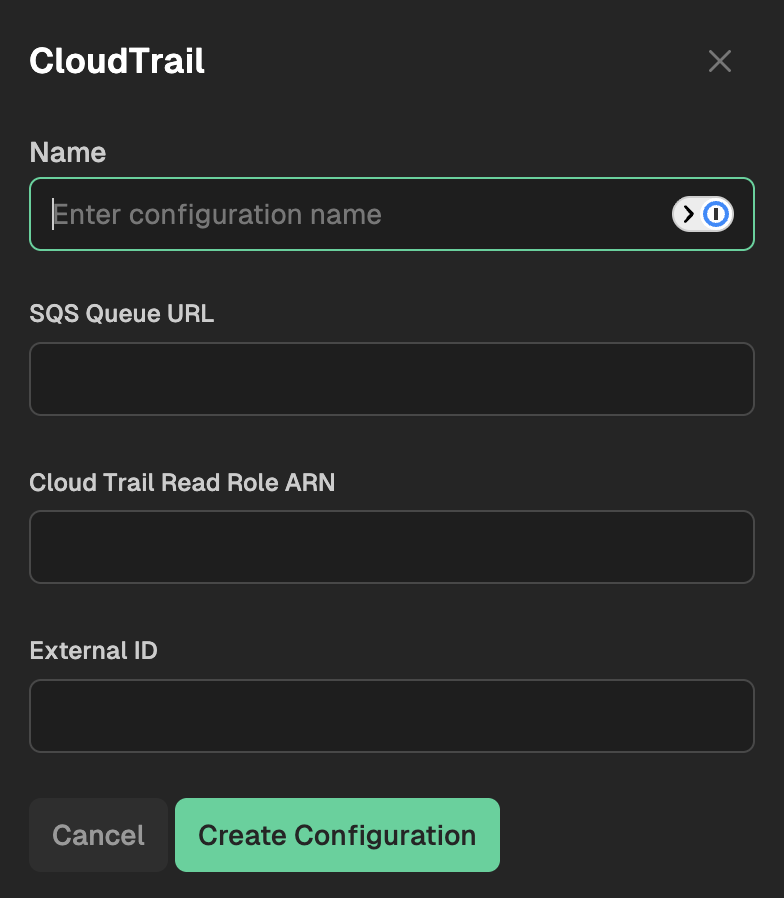
Go to your Nebulock platform and navigate to Integrations > Available Integrations, select "CloudTrail" and paste the values you gathered in the previous step.
Create a New Trail & Bucket
Use this option if you do not have an existing CloudTrail configuration. This template creates a complete setup including a new trail, S3 bucket, SNS/SQS queues, and KMS encryption.
Copy the CloudFormation template below and save it as cloud_formation.yaml on your computer.
AWSTemplateFormatVersion: '2010-09-09'
Description: Centralized CloudTrail Log Collection with Cross-Account Read Access

# --- Parameters ---
Parameters:
  BucketName:
    Type: String
    Description: Name of the S3 bucket to store CloudTrail logs (must be globally unique).
    Default: "cloudtrail-logs-centralized-yourcompanyname"

  TrailName:
    Type: String
    Description: The name of the CloudTrail trail to create.
    Default: "Nebulock-Integration-Trail"

  NebulockAccountId:
    Type: String
    Description: The AWS account ID of the Nebulock account.
    Default: "061039802247"

  ExternalId:
    Type: String
    Description: "Unique identifier used as an 'sts:ExternalId' to restrict unauthorized cross-account role assumption."

# --- Resources ---
Resources:
  # 1. KMS Key for S3 Encryption
  CloudTrailKMSKey:
    Type: AWS::KMS::Key
    Properties:
      Description: KMS key for encrypting CloudTrail logs in S3
      EnableKeyRotation: true
      KeyPolicy:
        Version: '2012-10-17'
        Statement:
          # Allow current account to manage the key
          - Sid: Enable IAM User Permissions
            Effect: Allow
            Principal:
              AWS: !Sub 'arn:aws:iam::${AWS::AccountId}:root'
            Action: 'kms:*'
            Resource: '*'
          # Allow CloudTrail to encrypt logs
          - Sid: Allow CloudTrail to encrypt logs
            Effect: Allow
            Principal:
              Service: cloudtrail.amazonaws.com
            Action:
              - 'kms:GenerateDataKey*'
              - 'kms:Decrypt'
            Resource: '*'
            Condition:
              StringLike:
                'kms:EncryptionContext:aws:cloudtrail:arn': !Sub 'arn:aws:cloudtrail:*:${AWS::AccountId}:trail/*'
          # Allow S3 to use the key for bucket operations
          - Sid: Allow S3 to use the key
            Effect: Allow
            Principal:
              Service: s3.amazonaws.com
            Action:
              - 'kms:Decrypt'
              - 'kms:GenerateDataKey'
            Resource: '*'
          # Allow SNS to use the key for encrypting messages to SQS
          - Sid: Allow SNS to use the key
            Effect: Allow
            Principal:
              Service: sns.amazonaws.com
            Action:
              - 'kms:Decrypt'
              - 'kms:GenerateDataKey*'
            Resource: '*'
          # Allow Nebulock worker role to decrypt S3 objects
          - Sid: Allow Nebulock Worker to decrypt S3 objects
            Effect: Allow
            Principal:
              AWS: !Sub 'arn:aws:iam::${NebulockAccountId}:role/eks-pod-identity-intake-worker-app-role'
            Action:
              - 'kms:Decrypt'
              - 'kms:DescribeKey'
            Resource: '*'
          # Allow Nebulock orchestrator role to decrypt SQS messages
          - Sid: Allow Nebulock Orchestrator to decrypt SQS messages
            Effect: Allow
            Principal:
              AWS: !Sub 'arn:aws:iam::${NebulockAccountId}:role/eks-pod-identity-intake-orchestrator-app-role'
            Action:
              - 'kms:Decrypt'
              - 'kms:DescribeKey'
            Resource: '*'

  # 2. SNS Topic for S3 Event Notifications
  CloudTrailLogSNSTopic:
    Type: AWS::SNS::Topic
    Properties:
      TopicName: !Sub '${TrailName}-s3-events'
      DisplayName: CloudTrail S3 Event Notifications
      KmsMasterKeyId: !GetAtt CloudTrailKMSKey.Arn

  CloudTrailLogSNSTopicPolicy:
    Type: AWS::SNS::TopicPolicy
    Properties:
      Topics:
        - !Ref CloudTrailLogSNSTopic
      PolicyDocument:
        Version: '2012-10-17'
        Statement:
          - Sid: AllowS3ToPublish
            Effect: Allow
            Principal:
              Service: s3.amazonaws.com
            Action: 'sns:Publish'
            Resource: !Ref CloudTrailLogSNSTopic
            Condition:
              ArnLike:
                'aws:SourceArn': !Sub 'arn:aws:s3:::${BucketName}'

  # 3. SQS Queue for Processing S3 Events
  CloudTrailLogSQSQueue:
    Type: AWS::SQS::Queue
    Properties:
      QueueName: !Sub '${TrailName}-log-queue'
      VisibilityTimeout: 300
      MessageRetentionPeriod: 1209600  # 14 days
      ReceiveMessageWaitTimeSeconds: 20  # Enable long polling
      KmsMasterKeyId: !GetAtt CloudTrailKMSKey.Arn

  CloudTrailLogSQSQueuePolicy:
    Type: AWS::SQS::QueuePolicy
    Properties:
      Queues:
        - !Ref CloudTrailLogSQSQueue
      PolicyDocument:
        Version: '2012-10-17'
        Statement:
          - Sid: AllowSNSToSendMessages
            Effect: Allow
            Principal:
              Service: sns.amazonaws.com
            Action: 'sqs:SendMessage'
            Resource: !GetAtt CloudTrailLogSQSQueue.Arn
            Condition:
              ArnEquals:
                'aws:SourceArn': !Ref CloudTrailLogSNSTopic

  # 4. Subscribe SQS to SNS
  CloudTrailLogSQSSubscription:
    Type: AWS::SNS::Subscription
    Properties:
      Protocol: sqs
      TopicArn: !Ref CloudTrailLogSNSTopic
      Endpoint: !GetAtt CloudTrailLogSQSQueue.Arn
      RawMessageDelivery: true

  # 5. S3 Bucket for CloudTrail Logs
  CloudTrailLogBucket:
    Type: AWS::S3::Bucket
    DependsOn:
      - CloudTrailLogSNSTopicPolicy
    Properties:
      BucketName: !Ref BucketName
      BucketEncryption:
        ServerSideEncryptionConfiguration:
          - ServerSideEncryptionByDefault:
              SSEAlgorithm: aws:kms
              KMSMasterKeyID: !GetAtt CloudTrailKMSKey.Arn
            BucketKeyEnabled: true
      OwnershipControls:
        Rules:
          - ObjectOwnership: BucketOwnerEnforced
      PublicAccessBlockConfiguration:
        BlockPublicAcls: true
        BlockPublicPolicy: true
        IgnorePublicAcls: true
        RestrictPublicBuckets: true
      NotificationConfiguration:
        TopicConfigurations:
          - Event: 's3:ObjectCreated:*'
            Topic: !Ref CloudTrailLogSNSTopic

  # 6. S3 Bucket Policy
  # Grants CloudTrail permission to write.
  CloudTrailLogBucketPolicy:
    Type: AWS::S3::BucketPolicy
    Properties:
      Bucket: !Ref CloudTrailLogBucket
      PolicyDocument:
        Version: '2012-10-17'
        Statement:
          # Statement 1: CloudTrail Write Permission
          - Sid: AWSCloudTrailWrite
            Effect: Allow
            Principal:
              Service: cloudtrail.amazonaws.com
            Action: 's3:PutObject'
            Resource: !Sub 'arn:aws:s3:::${BucketName}/AWSLogs/${AWS::AccountId}/*'
            Condition:
              StringEquals:
                's3:x-amz-acl': 'bucket-owner-full-control'

          # Statement 2: CloudTrail Get ACL Permission
          - Sid: AWSCloudTrailGet
            Effect: Allow
            Principal:
              Service: cloudtrail.amazonaws.com
            Action: 's3:GetBucketAcl'
            Resource: !Sub 'arn:aws:s3:::${BucketName}'

  # 7. IAM Role for Nebulock Read Access
  NebulockReadRole:
    Type: AWS::IAM::Role
    Properties:
      RoleName: !Sub "Nebulock-Read-Access-Role"
      AssumeRolePolicyDocument:
        Version: '2012-10-17'
        Statement:
          # Allow worker role to assume with ExternalId
          - Sid: AllowWorkerAssumeRole
            Effect: Allow
            Principal:
              AWS: !Sub 'arn:aws:iam::${NebulockAccountId}:role/eks-pod-identity-intake-worker-app-role'
            Action: "sts:AssumeRole"
            Condition:
              StringEquals:
                "sts:ExternalId": !Ref ExternalId
          # Allow worker role to tag session (no ExternalId condition)
          - Sid: AllowWorkerTagSession
            Effect: Allow
            Principal:
              AWS: !Sub 'arn:aws:iam::${NebulockAccountId}:role/eks-pod-identity-intake-worker-app-role'
            Action: "sts:TagSession"
          # Allow orchestrator role to assume with ExternalId
          - Sid: AllowOrchestratorAssumeRole
            Effect: Allow
            Principal:
              AWS: !Sub 'arn:aws:iam::${NebulockAccountId}:role/eks-pod-identity-intake-orchestrator-app-role'
            Action: "sts:AssumeRole"
            Condition:
              StringEquals:
                "sts:ExternalId": !Ref ExternalId
          # Allow orchestrator role to tag session (no ExternalId condition)
          - Sid: AllowOrchestratorTagSession
            Effect: Allow
            Principal:
              AWS: !Sub 'arn:aws:iam::${NebulockAccountId}:role/eks-pod-identity-intake-orchestrator-app-role'
            Action: "sts:TagSession"
      Policies:
        # S3 Read Access for Worker
        - PolicyName: S3ReadAccess
          PolicyDocument:
            Version: '2012-10-17'
            Statement:
              - Effect: Allow
                Action:
                  - 's3:GetObject'
                  - 's3:ListBucket'
                Resource:
                  - !GetAtt CloudTrailLogBucket.Arn
                  - !Sub "${CloudTrailLogBucket.Arn}/*"
        # SQS Read Access for Orchestrator
        - PolicyName: SQSReadAccess
          PolicyDocument:
            Version: '2012-10-17'
            Statement:
              - Effect: Allow
                Action:
                  - 'sqs:ReceiveMessage'
                  - 'sqs:DeleteMessage'
                  - 'sqs:GetQueueAttributes'
                  - 'sqs:GetQueueUrl'
                Resource:
                  - !GetAtt CloudTrailLogSQSQueue.Arn
        # KMS Decrypt Access for both roles
        - PolicyName: KMSDecryptAccess
          PolicyDocument:
            Version: '2012-10-17'
            Statement:
              - Effect: Allow
                Action:
                  - 'kms:Decrypt'
                  - 'kms:DescribeKey'
                Resource:
                  - !GetAtt CloudTrailKMSKey.Arn

  # 8. CloudTrail Trail
  MyCloudTrail:
    Type: AWS::CloudTrail::Trail
    DependsOn:
      - CloudTrailLogBucketPolicy
    Properties:
      S3BucketName: !Ref CloudTrailLogBucket
      IsLogging: true
      IsOrganizationTrail: false
      IsMultiRegionTrail: true
      IncludeGlobalServiceEvents: true
      EnableLogFileValidation: true
      TrailName: !Ref TrailName
      KMSKeyId: !GetAtt CloudTrailKMSKey.Arn

# --- Outputs ---
Outputs:
  CloudTrailSQSQueueUrl:
    Description: URL of the SQS queue for CloudTrail log notifications.
    Value: !Ref CloudTrailLogSQSQueue
  NebulockReadRoleArn:
    Description: ARN of the IAM Role that Nebulock will assume to read CloudTrail logs.
    Value: !GetAtt NebulockReadRole.Arn
  ExternalId:
    Description: Unique identifier used as an 'sts:ExternalId' to restrict unauthorized cross-account role assumption.
    Value: !Ref ExternalId
Log in to your AWS Management Console.
Navigate to the CloudFormation service.
Click Create stack > With new resources.
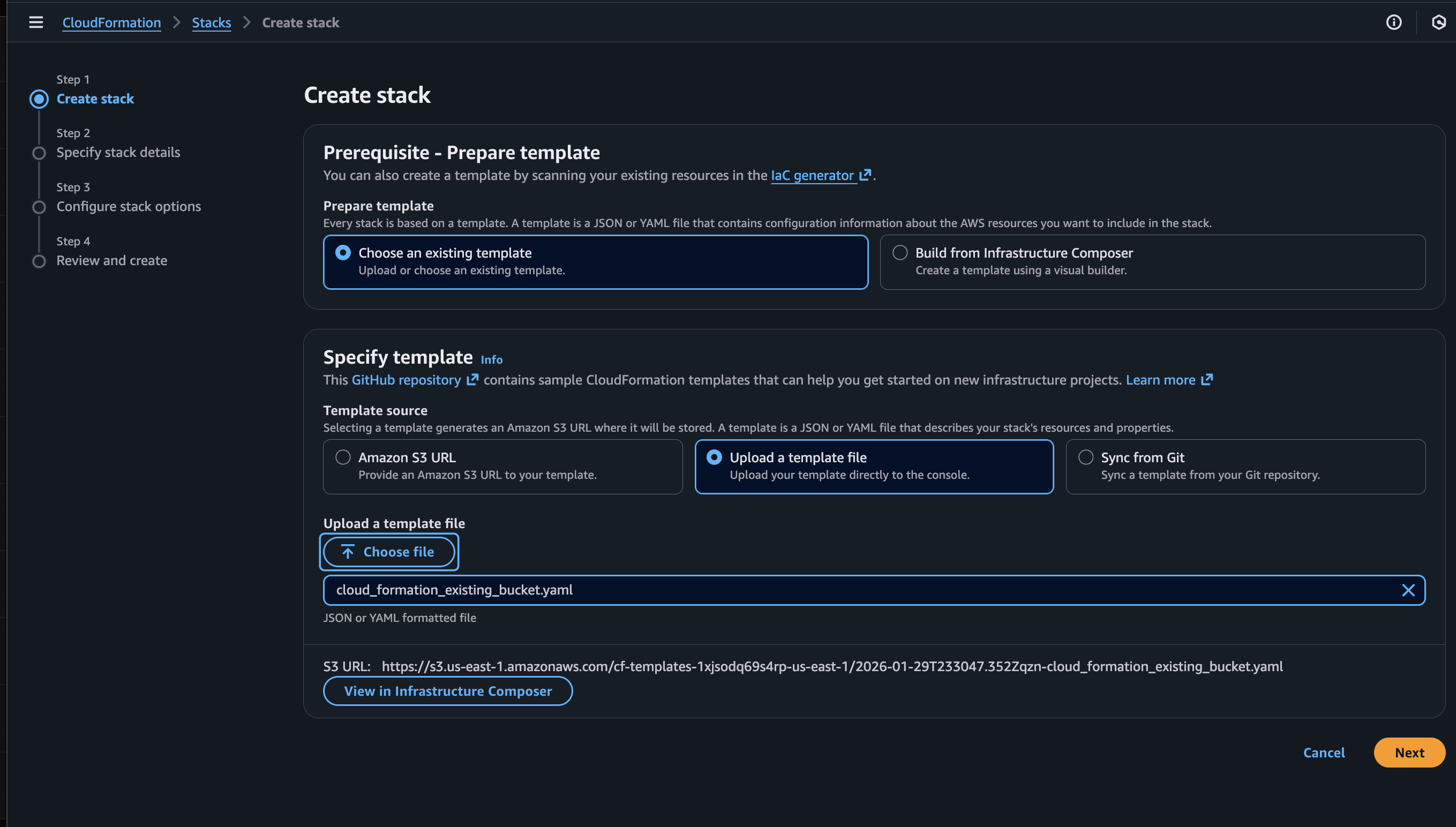
Select Upload a template file, choose the cloud_formation.yaml file, and click Next.
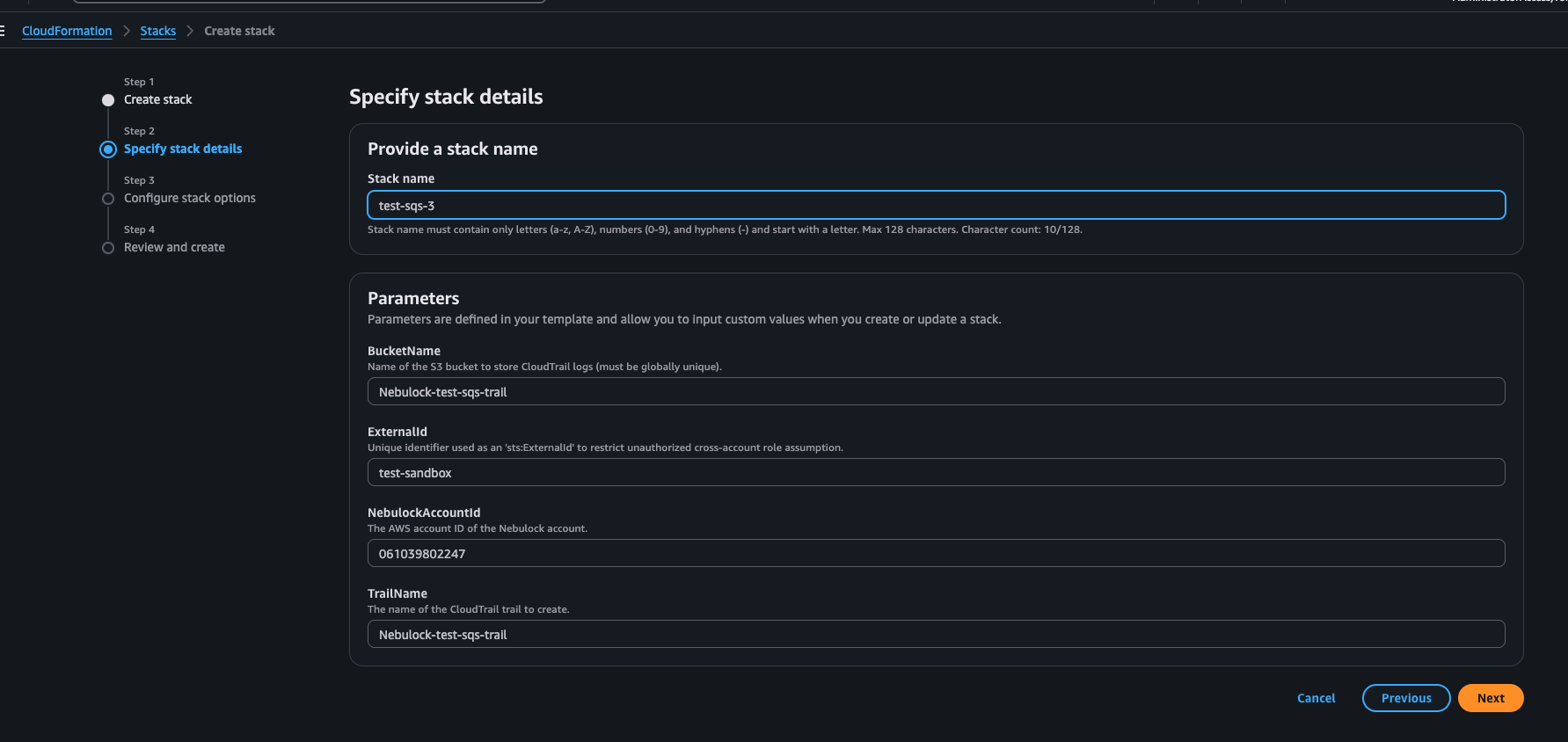
Configure the stack parameters.
-
Name the stack whatever you like
-
Change the name of the bucket parameter to something unique
-
Leave NebulockAccountID as default
-
Create some unique External ID
-
Can keep the TrailName as default or use your own naming convention
After submitting, ensure the stack was created correctly.
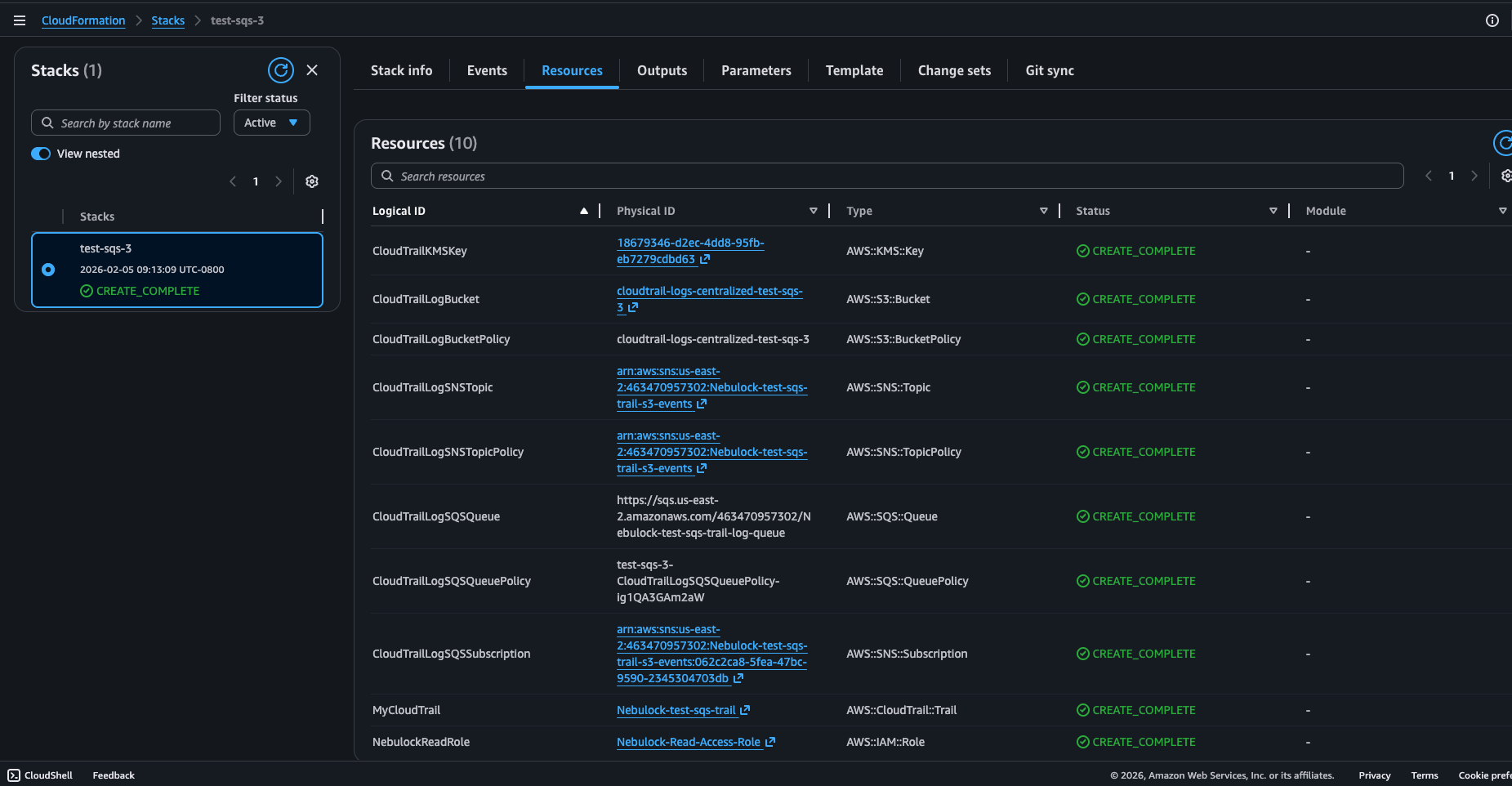
All the values you need for the Nebulock integration can be found under outputs.
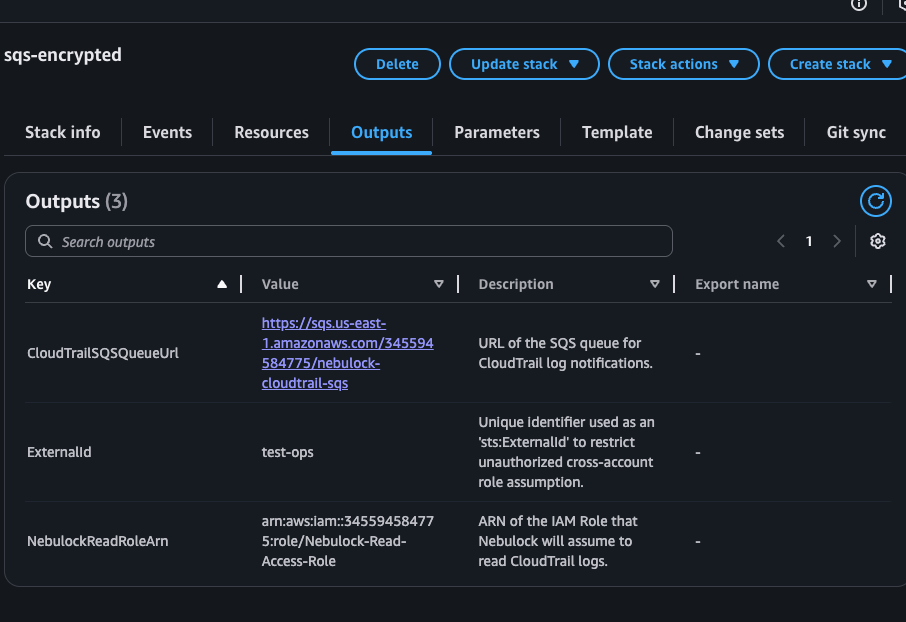
Go to your Nebulock platform and navigate to Integrations > Available Integrations, select "CloudTrail" and paste the values you gathered in the previous step.
Updated 6 months ago