
SentinelOne Cloud Funnel
Tutorial for enabling Cloud Funnel telemetry streaming to dedicated Nebulock Bucket
Prerequisites
- SentinelOne Management Console access with Admin permissions.
- Nebulock Platform access.
- Active Cloud Funnel add-on enabled on your SentinelOne account.
Step 1: Obtain the Dedicated S3 Bucket from Nebulock:
Reach out to your dedicated Nebulock Support or Customer Success representative to request your Ingestion S3 Bucket Name.
We will also provide you with an SQS URL, External ID, and Role ARN for Step 3.
Step 2. Configure Cloud Funnel in SentinelOne:
To Add the S3 sink destination in your SentinelOne Singularity Console:
- Log in to your SentinelOne Console.
- In the left navigation menu, navigate to Policies & Settings -> Products & Services -> AI SIEM -> Cloud Funnel.
- Paste the S3 Bucket Name into the Sink Destination / Bucket Name field.
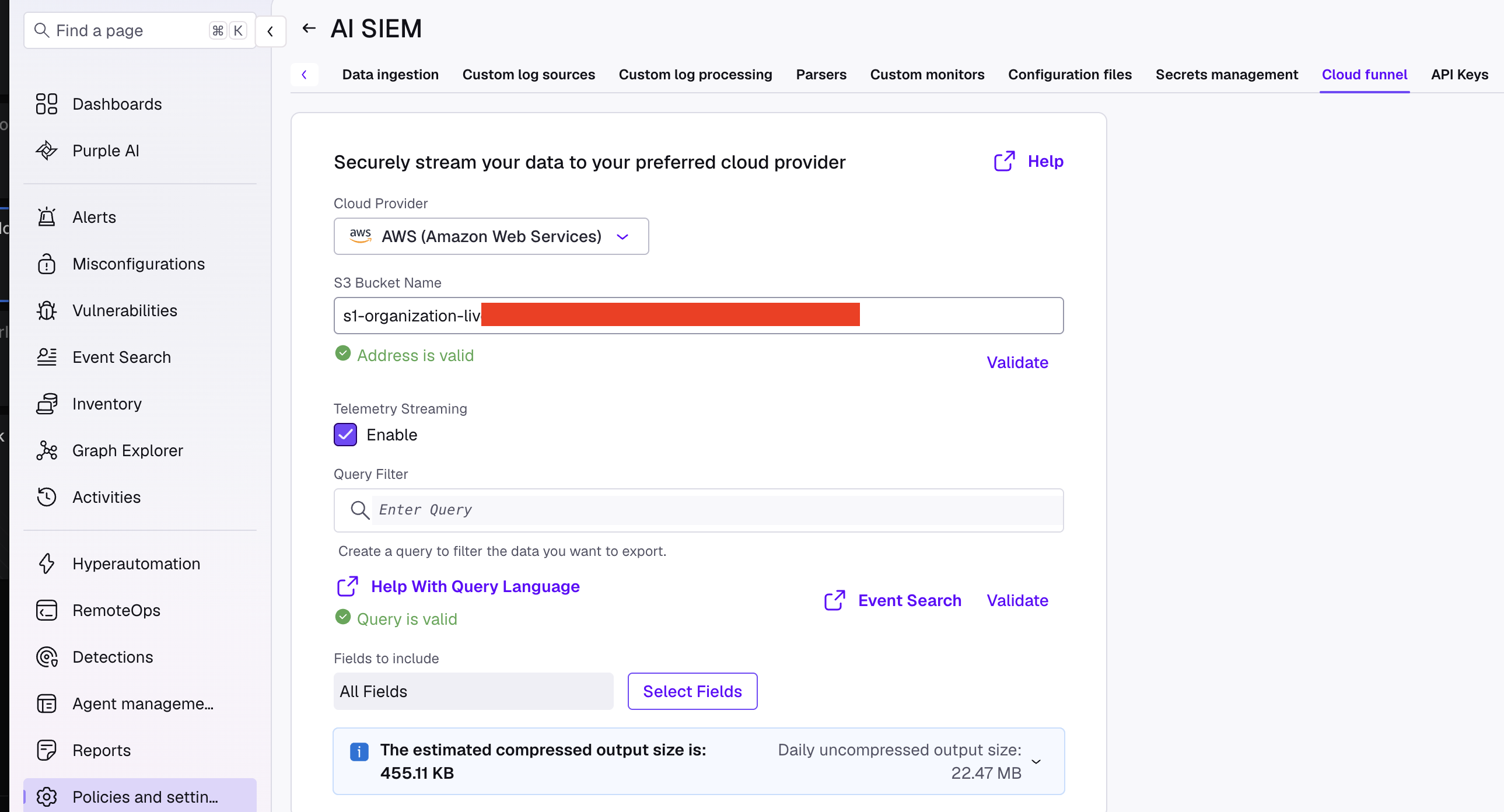
- Click Validate (or Save) to confirm connectivity and permissions.
- Ensure "Telemetry Streaming" is checked as enabled.
Step 3: Complete the Integration in Nebulock:
Once the sink destination validates successfully in SentinelOne, add the integration in the Nebulock portal:
- Select "Sentinel One CloudFunnel" and enter the connection details provided:
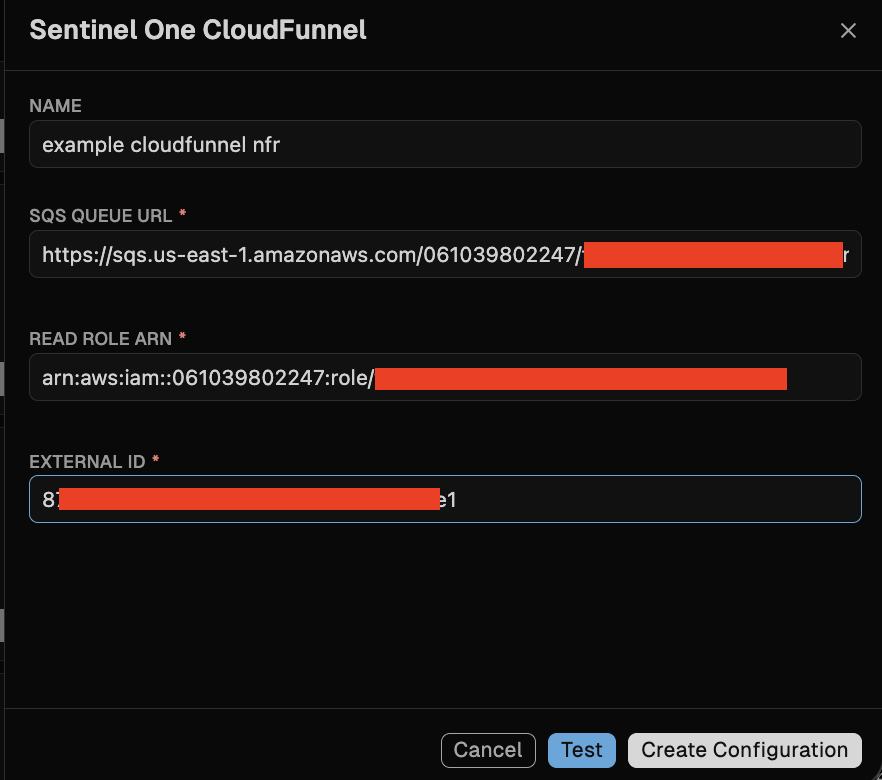
Click Save Integration to begin continuous telemetry ingestion.
Updated about 2 months ago
Did this page help you?