
Alert Triage
Autonomous alert triage with the Nebulock ACE Platform.
What Is Alert Triage?
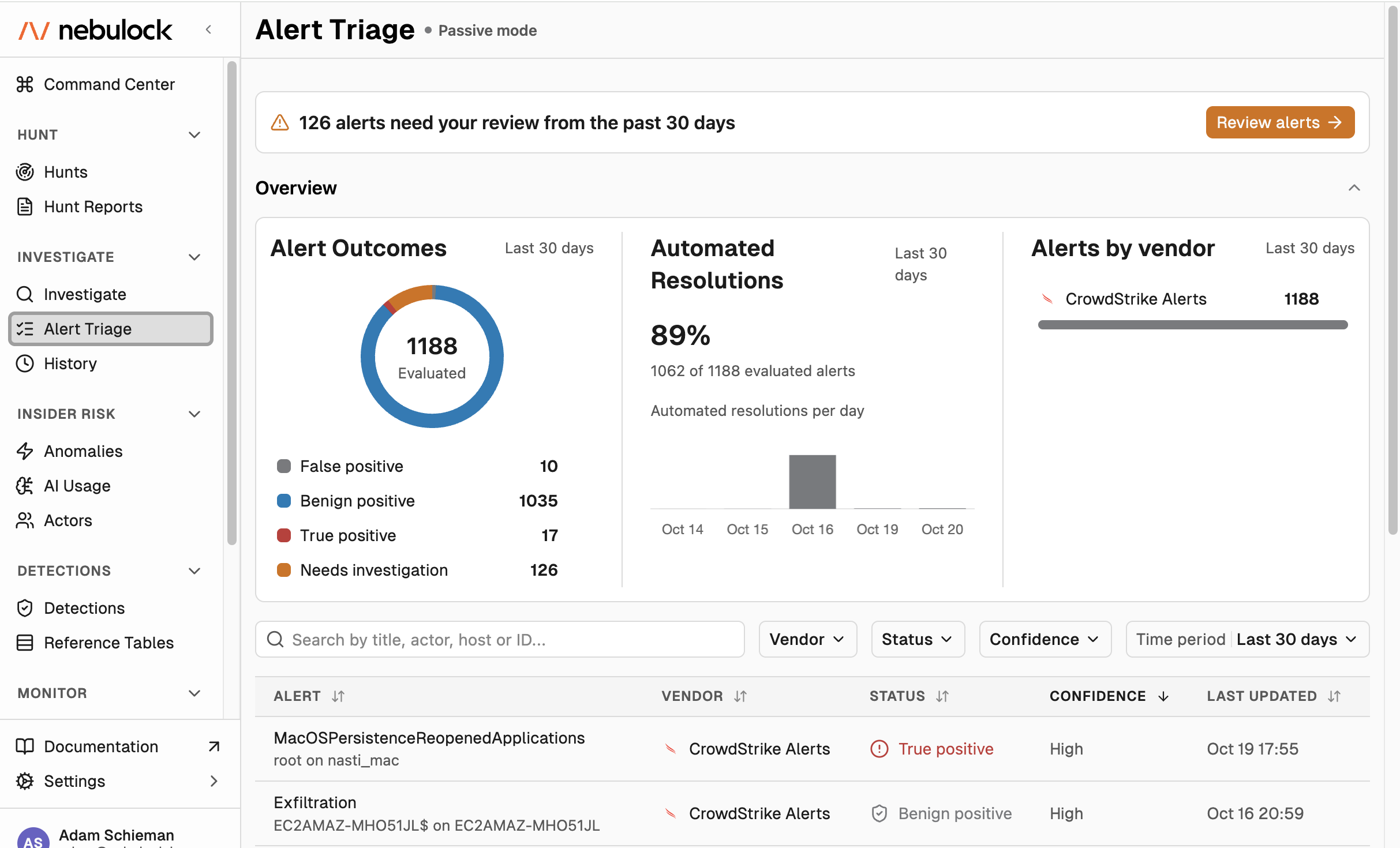
Nebulock's Alert Triage evaluates security tool alerts against our Agentic Cybersecurity Engineering (ACE) platform's TRACE Graph: the behavioral system of record that holds deep context on your organization such as entity baselines, activity history, and Findings from prior investigations across your environment. VespyrAi analyzes each alert and assigns a verdict with a confidence score.
How Does It Work?
When an alert arrives in Nebulock, VespyrAI performs a complete triage:
- Evaluates the alert against TRACE Graph evidence (entity baselines, process history, prior findings)
- Assigns a verdict with confidence score
- Provides detailed reasoning for the verdict
- Takes action based on the configured operating mode
VespyrAI assigns one of four possible verdicts:
- True Positive (TP): Confirmed malicious activity requiring immediate response
- False Positive (FP): Alert incorrectly triggered, no actual threat present
- Benign Positive (BP): Real activity that triggered the alert, but authorized and expected
- Needs Investigation (NI): Insufficient evidence or confidence for automatic resolution, requires human review
Each verdict includes a confidence score (High, Medium, Low) reflecting VespyrAI's certainty in the assessment.
Alert Triage Modes
Alert Triage operates in one of three modes that determine what actions are taken automatically:
Crowdstrike Alerts and Microsoft Defender Alerts
| Mode | What reaches the vendor | Auto-action? |
|---|---|---|
| Passive | Nothing | No |
| Recommendation | Vespyr Ai verdict, evidence, and analyst feedback as a comment | No |
| Autonomous | Same as Recommendation | High-confidence False/Benign Positive alerts - closed |
Microsoft Entra ID Alerts
| Mode | What reaches the vendor | Auto-action? |
|---|---|---|
| Passive | Nothing | No |
| Recommendation | Nothing - Microsoft Entra ID doesn’t support comments, so this behaves like Passive | No |
| Autonomous | Sign-in risk is confirmed |
|
Review Alert details
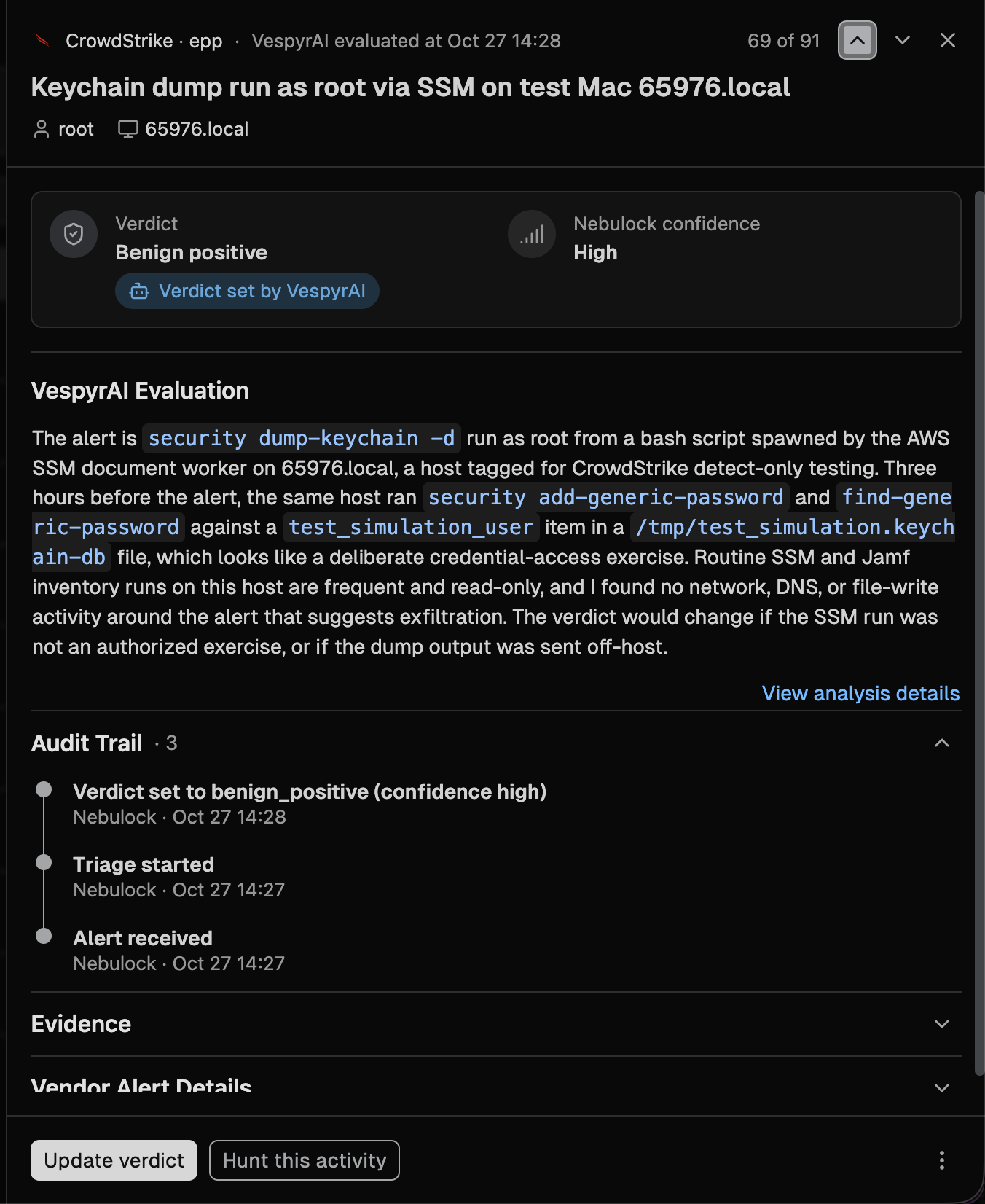
Click on an alert to view the details:
Vendor and Product
Alerts display their source as "Vendor - Product" (e.g., "CrowdStrike - EPP", "Microsoft - Entra ID Protection"). This helps analysts understand which specific security product within a vendor's suite generated the alert.
Verdict Attribution
Each alert shows who or what set the verdict:
- Verdict set by VespyrAI: The verdict and evaluation were produced by VespyrAI's autonomous triage
- Verdict set by user: A human analyst reviewed and changed the verdict.
When VespyrAI completes triage, the confidence score reflects Nebulock's certainty. When a user changes the verdict, the original VespyrAI evaluation persists in the detail view, and the user's comment is added to the audit trail.
VespyrAI Evaluation
The evaluation section shows VespyrAI's detailed reasoning for the verdict. This section always persists, even when a user changes the verdict. It provides:
- Summary of evidence examined
- Key factors influencing the verdict
- Reasoning behind the confidence level
- Context from TRACE Graph (entity behavior, historical patterns)
To see the complete triage process and reasoning, use the "View analysis details" link.
Audit Trail
The audit trail shows the complete history of actions on an alert:
- When VespyrAI triaged the alert
- Verdict changes by users (with timestamps and comments)
- Actions taken in source systems (closures, status changes)
The audit trail is expanded by default for instant visibility.
Available Actions
From the alert detail view:
- Update verdict: Review VespyrAI's assessment and change the verdict if needed. Your comment explaining the change is added to the audit trail and adds context to TRACE Graph making the agents smarter over time.
- Hunt this activity: Launch an investigation into related activity using the ACE platform's hunting capabilities.
- View analysis details: See VespyrAI's complete reasoning, evidence examined, and decision process.
In the overflow menu: - View alert in source system: Open the original alert in the vendor console (available in all modes).
- Close alert in source system: Manually close the alert in the vendor system (availability varies by mode).
In Autonomous mode, manual close is only available for True Positive and Needs Investigation verdicts, since False Positive and Benign Positive alerts are already automatically closed.
Configuration
Enable Alert Triage
Configure Alert Triage integrations in Settings > Integrations to begin ingesting alerts. New integrations default to Passive Mode.
Change Operating Mode
Changing the operating mode requires Organization Admin role:
- Navigate to Settings > Alert Triage
- Review the description of each mode
- Select the desired mode for your organization
- Save changes
Mode changes take effect immediately for new alerts.
Alert Triage & TRACE Graph
TRACE Graph is the knowledge base VespyrAI uses during triage. It contains:
- Entity baselines: Normal behavior patterns for users, hosts, processes, and network connections
- Process history: Execution chains, parent-child relationships, and command-line patterns
- Prior investigation findings: Results from previous investigations, hunts, and detection rule evaluations
- Temporal context: When entities typically appear, frequency patterns, and deviation signals
VespyrAI references TRACE Graph to distinguish between "this process is suspicious" and "this process is suspicious for this host." The graph grows smarter as VespyrAI learns from your environment.
Updated 2 days ago