
Google Cloud Platform (beta)
Documentation for setting up Google Cloud Platform (GCP) to send telemetry to Nebulock.
Overview
Nebulock ingests Google Cloud Platform (GCP) logs by reading them from a Pub/Sub subscription in your project. Cloud Logging routes entries to a Pub/Sub topic through a log sink, and Nebulock pulls from a dedicated subscription. Pub/Sub delivers entries within seconds of being written.
Nebulock authenticates with Workload Identity Federation. There are no service account keys or credential files to create, upload, or rotate. Your workload identity pool only trusts Nebulock's AWS federation role acting for your Nebulock organization. A token requested for any other organization is rejected by Google before it can reach your project.
Access is granted on the subscription itself, not on the project. Nebulock can only read and acknowledge messages on that subscription.
Before you start
Collect Your Nebulock Organization ID
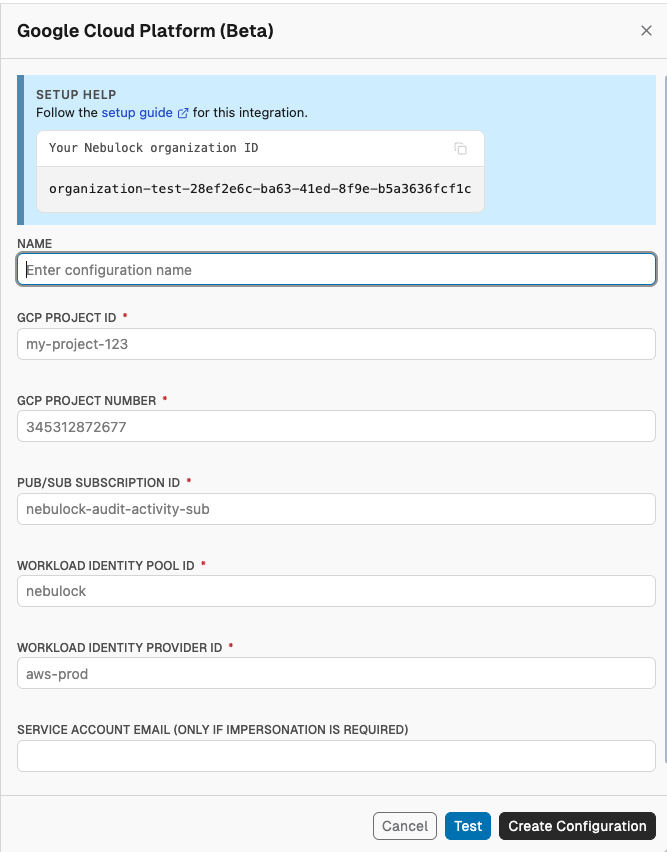
Your Nebulock Organization ID can be found on the Google Cloud Platform tile in the Integrations view. It will be needed in Steps 3 and 4.
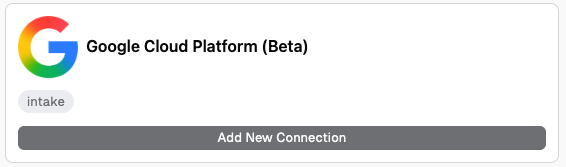
Go to your Nebulock platform and navigate to Integrations > Available Integrations, click Add New Connection on the Google Cloud Platform tile.
Enable Data Access audit logs in GCP
Admin Activity and System Event audit logs are always on. Data Access audit logs are off by default for most Google services (BigQuery is the exception), so without this step Nebulock receives no data_access entries.
In the Google Cloud console:
- Go to IAM & Admin → Audit Logs.
- Click Set Default Configuration.
- On the Log Types tab, check Admin Read, Data Read, and Data Write.
- Click Save.
You can set this at the organization, folder, or project level. To manage it as code instead, add an auditConfigs entry to that resource's IAM policy:
auditConfigs:
- service: allServices
  auditLogConfigs:
  - logType: DATA_READ
  - logType: DATA_WRITE
Data Access is the high-volume audit log type, and Cloud Logging bills its ingestion in your account. If cost is a concern, enable it for the services that matter rather thanallServices. Only entries written after it's enabled are sent. See Google's guide: Configure Data Access audit logs.
Setup Steps
Step 1: Create a topic and log sink (optional)
Skip this step if you already have topics that carry exactly the log types you want to send (for example, one topic per log type). You can subscribe to a broader topic, but you pay egress on every entry, and Nebulock discards the types it doesn't ingest.
Otherwise, create a topic and a log sink that routes the two audit log types Nebulock ingests to it. The sink's scope decides which logs it collects:
- Organization (recommended): every project and folder in the organization, plus organization-level events such as changes to the organization's IAM policy, which never appear in any project's logs. Requires the Logs Configuration Writer role (
roles/logging.configWriter) on the organization. - Project: only that project's logs. Use it to start with a single project, or if you can't create sinks at the organization level. Requires the same role on the project.
The topic can live in any project you choose, whichever scope you pick.
Organization-level sink
PROJECT_ID=<YOUR_PROJECT_ID>
ORG_ID=<YOUR_GCP_ORGANIZATION_ID>

gcloud pubsub topics create nebulock-audit --project="$PROJECT_ID"

gcloud logging sinks create nebulock-audit \
  "pubsub.googleapis.com/projects/$PROJECT_ID/topics/nebulock-audit" \
  --organization="$ORG_ID" --include-children \
  --log-filter='log_id("cloudaudit.googleapis.com/activity") OR log_id("cloudaudit.googleapis.com/data_access")'

# The sink writes as its own identity; let it publish to the topic.
WRITER=$(gcloud logging sinks describe nebulock-audit --organization="$ORG_ID" --format='value(writerIdentity)')
gcloud pubsub topics add-iam-policy-binding nebulock-audit --project="$PROJECT_ID" \
  --member="$WRITER" --role=roles/pubsub.publisher
Project-level sink
PROJECT_ID=<YOUR_PROJECT_ID>

gcloud pubsub topics create nebulock-audit --project="$PROJECT_ID"

gcloud logging sinks create nebulock-audit \
  "pubsub.googleapis.com/projects/$PROJECT_ID/topics/nebulock-audit" \
  --project="$PROJECT_ID" \
  --log-filter='log_id("cloudaudit.googleapis.com/activity") OR log_id("cloudaudit.googleapis.com/data_access")'

# The sink writes as its own identity; let it publish to the topic.
WRITER=$(gcloud logging sinks describe nebulock-audit --project="$PROJECT_ID" --format='value(writerIdentity)')
gcloud pubsub topics add-iam-policy-binding nebulock-audit --project="$PROJECT_ID" \
  --member="$WRITER" --role=roles/pubsub.publisher
Entries written before the sink exists are not sent, and a new sink can take a few minutes to start routing.
Step 2: Create a dedicated subscription
Create one subscription per topic Nebulock should read:
PROJECT_ID=<YOUR_PROJECT_ID>
TOPIC=<YOUR_TOPIC>

gcloud pubsub subscriptions create "$TOPIC-nebulock" --project="$PROJECT_ID" \
  --topic="$TOPIC" --ack-deadline=120 --message-retention-duration=7d
This subscription must be used by Nebulock only. Every subscription receives its own full copy of each message on the topic, but readers that share one subscription split the messages between them. If Nebulock shared a subscription with an existing consumer (a SIEM, Elastic Agent), each would see only part of the stream.
Seven days of retention is how long delivery can be interrupted before entries expire.
Step 3: Create the workload identity pool and provider
Replace <YOUR_NEBULOCK_ORGANIZATION_ID> with your Nebulock organization ID. The provider trusts Nebulock's AWS account and accepts only Nebulock's federation role acting for your organization.
PROJECT_ID=<YOUR_PROJECT_ID>
NEBULOCK_ORG_ID=<YOUR_NEBULOCK_ORGANIZATION_ID>

gcloud iam workload-identity-pools create nebulock --project="$PROJECT_ID" \
  --location=global --display-name="Nebulock"

gcloud iam workload-identity-pools providers create-aws aws-prod --project="$PROJECT_ID" \
  --location=global --workload-identity-pool=nebulock \
  --account-id=061039802247 \
  --attribute-condition="assertion.arn == 'arn:aws:sts::061039802247:assumed-role/nebulock-gcp-federation/$NEBULOCK_ORG_ID'"
These commands only create resources. If a pool or provider with the same name already exists, they fail without changing it.
Step 4: Grant access on the subscription
Grant Pub/Sub Subscriber (to pull and acknowledge) and Pub/Sub Viewer (to read the subscription's settings) to Nebulock's principal, on the subscription only. Repeat for each subscription from Step 2:
PROJECT_ID=<YOUR_PROJECT_ID>
NEBULOCK_ORG_ID=<YOUR_NEBULOCK_ORGANIZATION_ID>
SUBSCRIPTION=<YOUR_TOPIC>-nebulock

PROJECT_NUMBER=$(gcloud projects describe "$PROJECT_ID" --format='value(projectNumber)')
PRINCIPAL="principal://iam.googleapis.com/projects/$PROJECT_NUMBER/locations/global/workloadIdentityPools/nebulock/subject/arn:aws:sts::061039802247:assumed-role/nebulock-gcp-federation/$NEBULOCK_ORG_ID"

gcloud pubsub subscriptions add-iam-policy-binding "$SUBSCRIPTION" --project="$PROJECT_ID" \
  --member="$PRINCIPAL" --role=roles/pubsub.subscriber
gcloud pubsub subscriptions add-iam-policy-binding "$SUBSCRIPTION" --project="$PROJECT_ID" \
  --member="$PRINCIPAL" --role=roles/pubsub.viewer

echo "Project number: $PROJECT_NUMBER"
Alternative: access through a service account you own
If your organization doesn't allow external federated principals in resource IAM policies, grant access to a service account in your project instead, and allow Nebulock's principal only to impersonate it. Use these commands in place of the ones above:
PROJECT_ID=<YOUR_PROJECT_ID>
NEBULOCK_ORG_ID=<YOUR_NEBULOCK_ORGANIZATION_ID>
SUBSCRIPTION=<YOUR_TOPIC>-nebulock

PROJECT_NUMBER=$(gcloud projects describe "$PROJECT_ID" --format='value(projectNumber)')
PRINCIPAL="principal://iam.googleapis.com/projects/$PROJECT_NUMBER/locations/global/workloadIdentityPools/nebulock/subject/arn:aws:sts::061039802247:assumed-role/nebulock-gcp-federation/$NEBULOCK_ORG_ID"
SA="nebulock-reader@$PROJECT_ID.iam.gserviceaccount.com"

# Impersonation goes through the IAM Credentials API.
gcloud services enable iamcredentials.googleapis.com --project="$PROJECT_ID"

gcloud iam service-accounts create nebulock-reader --project="$PROJECT_ID" \
  --display-name="Nebulock reader"

# Nebulock's principal may impersonate this service account and nothing else.
gcloud iam service-accounts add-iam-policy-binding "$SA" --project="$PROJECT_ID" \
  --member="$PRINCIPAL" --role=roles/iam.workloadIdentityUser

# The service account, not Nebulock's principal, holds access to the subscription.
gcloud pubsub subscriptions add-iam-policy-binding "$SUBSCRIPTION" --project="$PROJECT_ID" \
  --member="serviceAccount:$SA" --role=roles/pubsub.subscriber
gcloud pubsub subscriptions add-iam-policy-binding "$SUBSCRIPTION" --project="$PROJECT_ID" \
  --member="serviceAccount:$SA" --role=roles/pubsub.viewer

echo "Project number: $PROJECT_NUMBER"
echo "Service account: $SA"
A newly created service account can take a few seconds to become visible to IAM; if the first binding fails, rerun it. Enter the service account email in the integration form in Step 5.
Step 5: Enable the integration in Nebulock
Go to your Nebulock platform and navigate to Integrations > Available Integrations, click Add New Connection on the Google Cloud Platform tile.
File in the fields with the information below:
| Form field | Value |
|---|---|
| GCP Project ID | Your project ID (PROJECT_ID) |
| GCP Project Number | Printed at the end of Step 4, or gcloud projects describe PROJECT_ID --format='value(projectNumber)' |
| Pub/Sub Subscription ID | The subscription from Step 2, for example nebulock-audit-nebulock |
| Workload Identity Pool ID | nebulock |
| Workload Identity Provider ID | aws-prod |
| Service Account Email | Leave blank, unless you used the service account alternative in Step 4. Then enter the service account email, for example nebulock-reader@PROJECT_ID.iam.gserviceaccount.com |
Click Save. Nebulock begins pulling from the subscription within a few minutes.
Test your connection
Click Test in the form to check the values before saving, or later choose Test from the integration's actions menu on the Integrations page. Nebulock signs in through your workload identity pool and checks that it can read the subscription, without pulling any messages. For a saved integration, the result appears as its latest test, and Nebulock repeats the check daily.
If the test fails, the message names the step to fix:
| Message | What to check |
|---|---|
| Couldn't authenticate with Google Cloud | The project number, pool ID and provider ID in the form match Step 3, and the provider's attribute condition uses your Nebulock organization ID. With the service account alternative, also the service account email and its Workload Identity User grant. |
| Pub/Sub subscription not found | The project ID and subscription ID in the form match Step 2. |
| Can't read from the Pub/Sub subscription | The Pub/Sub Subscriber grant from Step 4 is on this subscription. |
| Couldn't reach Google Cloud, or Google Cloud returned an error | Usually temporary. Try again in a few minutes. |
Supported log types
Nebulock ingests the following Cloud Audit Logs:
| Log | Log ID |
|---|---|
| Admin Activity | cloudaudit.googleapis.com/activity |
| Data Access | cloudaudit.googleapis.com/data_access |
Entries of other types on the subscription are acknowledged and discarded. They never build a backlog, but you still pay egress on them. The sink filter in Step 1 sends only these two.
What you'll see in your GCP audit logs
If Data Access audit logs are enabled for Security Token Service, each token Nebulock obtains appears in your logs as SecurityTokenService.ExchangeToken against the nebulock pool. Expect roughly one entry per Nebulock reader every 15 minutes. If you use the service account alternative, each token also appears as GenerateAccessToken on that service account.
Updated 5 days ago