
Tenable Cloud Security
Connect Nebulock Helix to Tenable Cloud Security for just-in-time cloud security posture
Overview
The Tenable Cloud Security integration enables Nebulock Helix to query cloud resource inventory and compliance findings from Tenable Cloud Security on demand during hunts and investigations.
Before you start
Before you begin, make sure you have:
- Administrator access to Tenable Vulnerability Management (Tenable Cloud Security's API credential is created through the same platform account and console as Tenable Vulnerability Management)
- Permission to create a dedicated service account for the integration
Tenable setup
Create a service account
- Log in to Tenable Vulnerability Management as an Administrator.
- Click the Settings gear (top right) and go to Access Control.
- Create a dedicated service account for the integration - Tenable recommends an email not tied to an individual employee for production use - and assign it the Basic User role, the minimum role needed to generate API keys.
- Log out, then log back in as the service account.
Generate an API key
-
Click your profile avatar, go to My Profile, then select API Keys in the left-side navigation.
-
Click Generate in the bottom right. Confirm the warning that this overwrites any previously generated keys.
-
Copy both the Access Key and Secret Key shown and store them securely the secret key is shown only once.
-
Combine both keys into a single string in this form for the next step:
accessKey=<your-access-key>;secretKey=<your-secret-key>
Configure the integration in Nebulock
Go to your Nebulock portal and navigate to Integrations > Available Integrations, click Add New Connection on the Tenable Cloud Security tile and fill in the fields below.
| Form field | Value |
|---|---|
| Tenable Cloud Security API Token | The combined accessKey=...;secretKey=... string from the previous step |
| Tenant Region (optional) | Global or US Government - leave blank to default to Global |
| Base URL Override (optional) | Leave blank unless directed otherwise |
Click Create Configuration.
Test your connection
Click Test in the form to check the values before saving, or later choose Test from the integration tile action menu on the Integrations page. For a saved integration, the latest test result is shown in the integration tile, and the check also runs automatically once a day.
See it in action
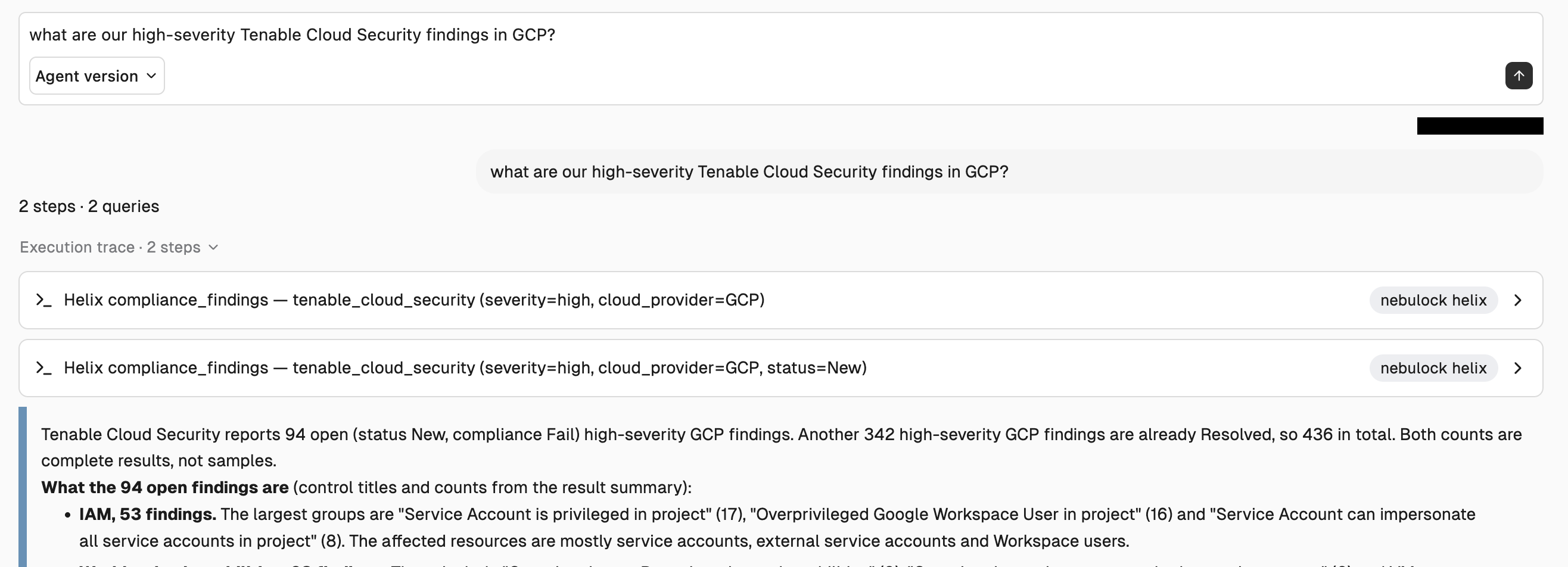
In the Nebulock portal, navigate to Investigate > Investigate and try a question like:
what are our high-severity Tenable Cloud Security findings in GCP?
Updated 3 days ago